Network: opportunities, contacts and organizations
Track what you're pursuing and who's involved, link a Folio to an opportunity, and what readers see.
Written By Tailored Folio
Last updated About 7 hours ago
Network keeps track of the opportunities you're pursuing, the people involved, and the organizations behind your work. Only you see it. Open Network from the top menu; it has three tabs: Opportunities, Contacts and Organizations.
Opportunities
An opportunity is the why and the who behind a Folio: the role or engagement, the organization, where it stands, the dates and the people. Choose New opportunity and give it a Role or engagement, in your words: a job title, a talk or a contract. Everything else can come later.
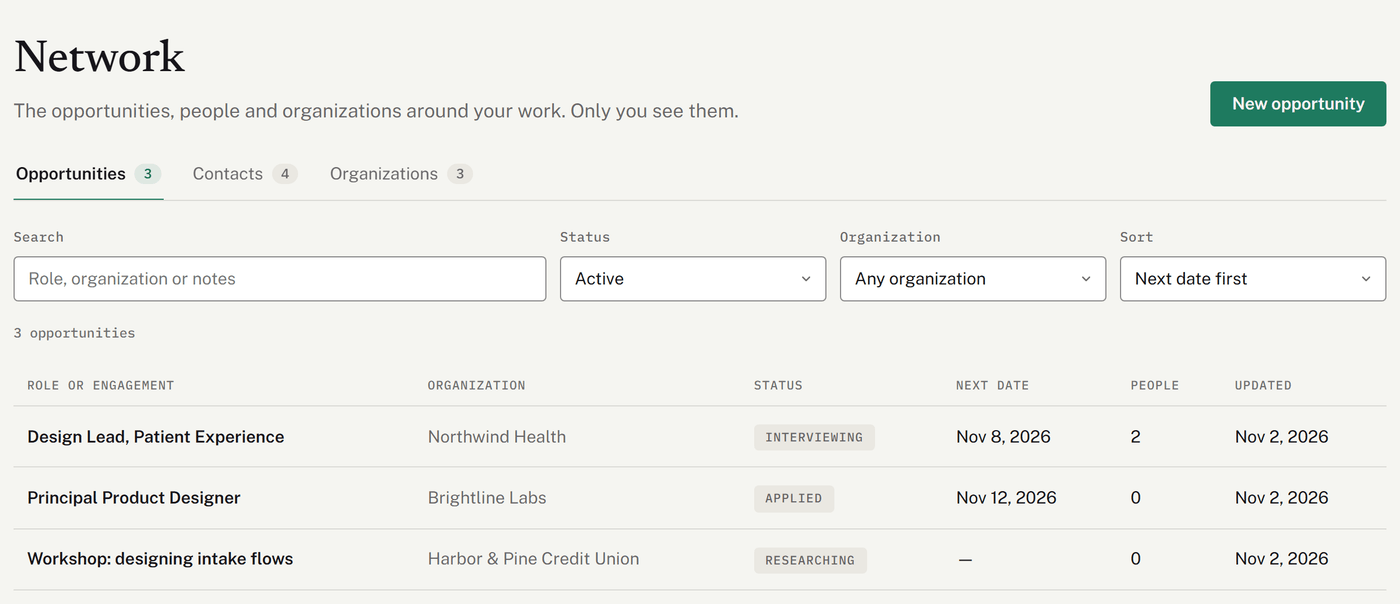
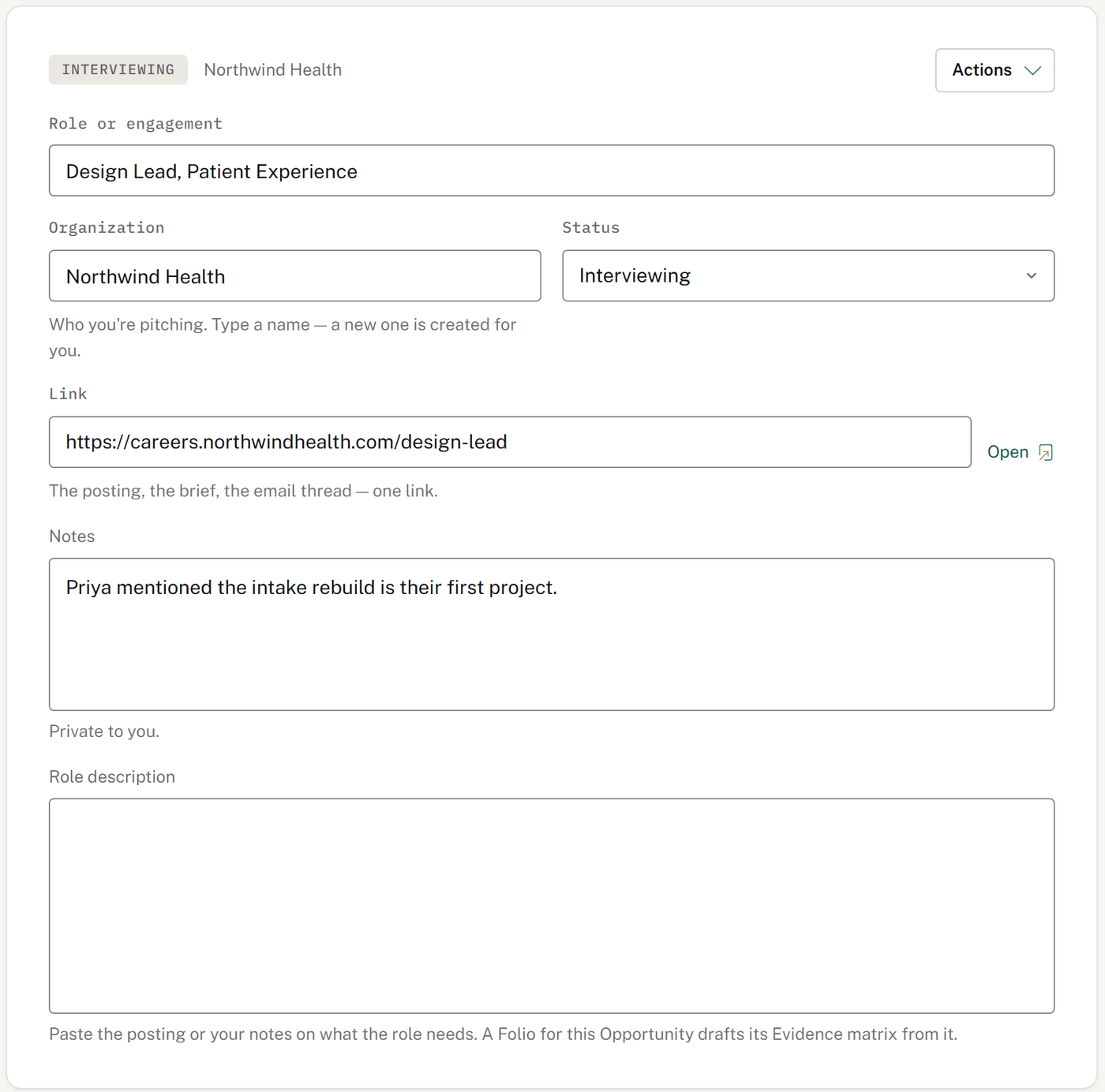
On an opportunity's page you can set:
Organization, who you're pitching. Type a name; a new organization is created if you don't have one by that name.
Status: Researching, Preparing, Applied, Interviewing, Negotiating, Won, Lost or Withdrawn. A new opportunity starts as Researching.
Link to the posting, the brief or the email thread.
Notes, private to you.
Role description: paste the posting or your notes on what the role needs. A Folio for this opportunity drafts its Evidence matrix from it. The AI draft of the matrix comes with Pro.
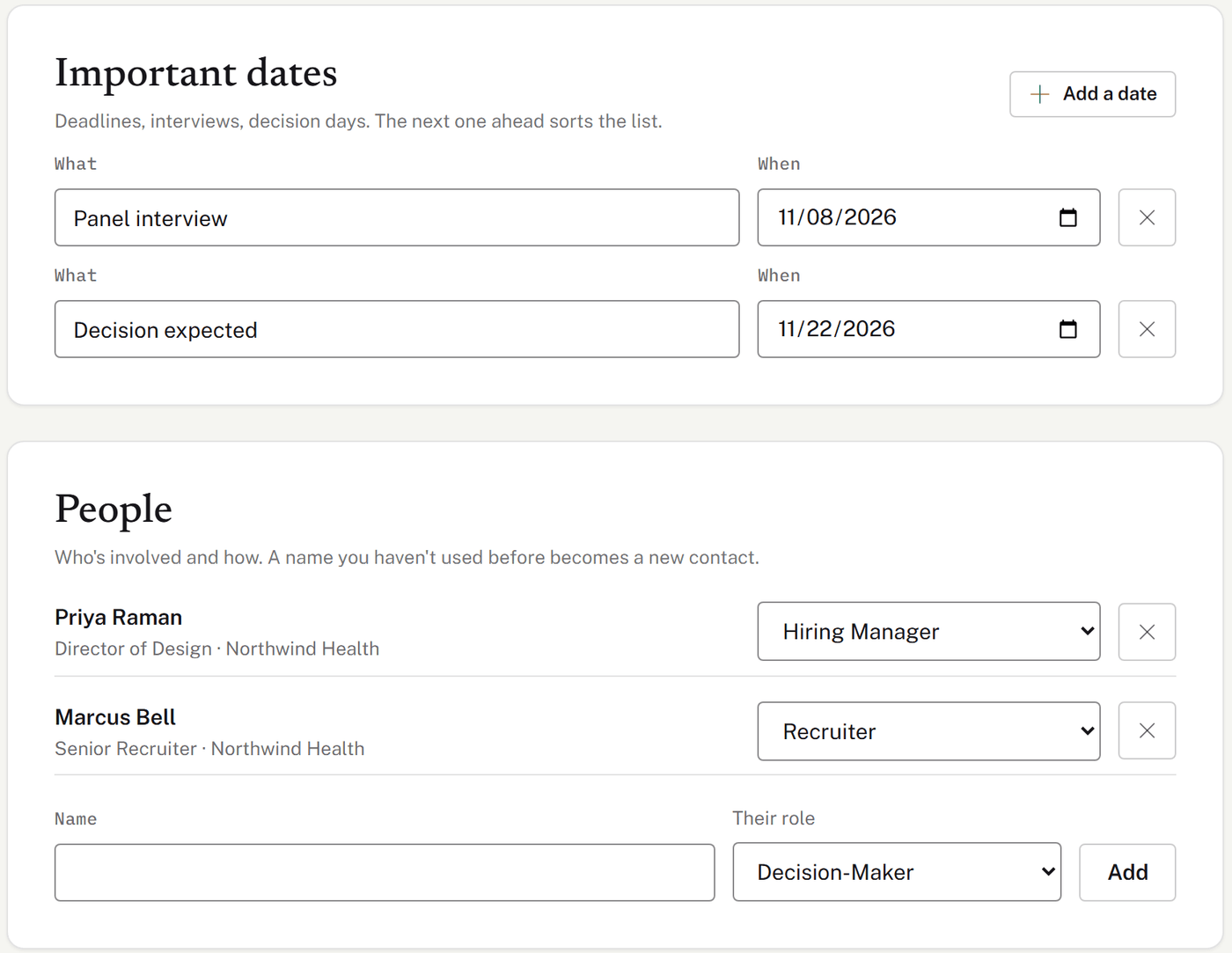
Important dates holds deadlines, interviews and decision days, up to 20. The next one ahead is what sorts the list. People holds who's involved and their role in this opportunity. A name you haven't used before becomes a new contact.
Linking a Folio to an opportunity
Pick an opportunity when you create a Folio, or later under Opportunity in the Folio. Linking one:
fills in the Folio's recipient: the name of the newest person on the opportunity and its organization as the company. Linking later fills only fields that are still empty, and unlinking never clears anything;
lets you filter the Folios list by opportunity;
shows readers a line on the Folio's welcome page: "For the [role] role at [organization]". Check the role and organization names before you publish.
A copy of a Folio doesn't keep its opportunity, so link each copy to its own. A variation can be linked to an opportunity too, which tells the AI who it's for.
Contacts
Contacts are the people behind your opportunities: recruiters, hiring managers, referrals, anyone you're talking to. A contact needs only a Name. You can add their Organization, Job title, Email, Phone, LinkedIn and private Notes, and their page lists every opportunity they're on.
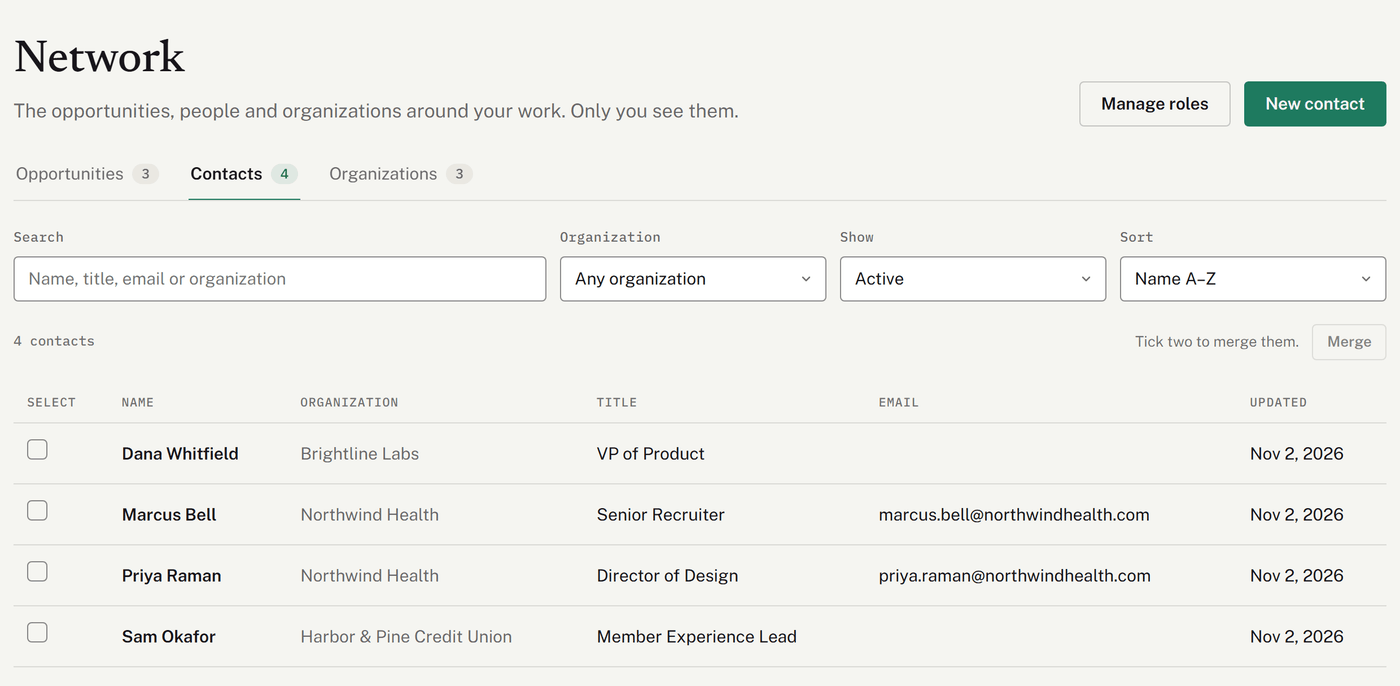
Roles describe a contact's part in a particular opportunity. You start with Recruiter, Hiring Manager, Referral and Decision-Maker, and you can add your own from an opportunity's People section. Manage roles lets you rename a role everywhere at once, or delete one. If a role is in use, you choose another role to move those people to first.
Organizations
Organizations are the employers and clients behind your stories, and the companies you pitch. An organization needs only a Name; you can add its Website, Industry, Location, private Notes and Describe as.
Describe as is how the AI refers to the organization when its name stays private, for example "a regional bank". It's optional, but strongly recommended: a story's organization is kept out of what the AI writes unless the variation is marked Public-safe.
When you type an organization's name on a story, contact or opportunity, Tailored uses the one you already have with that name, whatever the capitalization. A new name creates a new organization.
An organization's page lists its contacts and the stories that name it.
The organization on a story is private. Readers see its name only on a variation marked Public-safe.
Searching and merging
Searching on the Contacts or Organizations tab looks through both at once. Search on Opportunities looks at opportunities only.
If you end up with two records for the same person or organization, tick both and choose Merge. You choose the one to keep. Everything that points at the other moves to it, empty fields are filled in from the other, and the other is archived. You can't undo a merge yourself. If you merged the wrong two, contact us and we can put them back: what moved goes back, and the other record comes out of the archive. Empty fields that were filled in from it stay filled in, and if a record that moved has since been deleted or changed, we may not be able to undo it.
Archiving
Opportunities, contacts and organizations are archived, not deleted. Choose Actions, then Archive.
An archived contact stays on every opportunity that names them.
An archived organization stays on every story and opportunity that names it. Typing its name somewhere new creates a fresh organization, so restore the old one first if you want to keep using it.
An archived opportunity keeps its status for when you restore it, and any Folio linked to it stays as it is.
To find archived records, change the list's filter to show them, open one, and choose Restore.
What leaves Network
Your contacts, notes, links, roles and dates are never shown to readers. Two things do reach a Folio: the role and organization of a linked opportunity, and the recipient details it fills in. Your data export includes everything in Network.
Was this helpful?
Still need help? Ask the team