Sharing the same Folio with several people
One Folio has one link. When each reader should have their own, duplicate the Folio.
Written By Tailored Folio
Last updated 1 day ago
Every published Folio has one link. When you want to send the same work to several people, you have two choices: send everyone that one link, or give each reader their own copy of the Folio. This page explains the difference and how to make a copy.
One Folio, one link
Everyone who has a Folio's link sees the same page:
the same welcome message and framing notes,
the same Prepared for name and company at the top,
the same passcode, expiry date and open limit.
Its activity is counted together too. Every count is per visit, never per person, so with one link you can't tell which reader opened it. And turning the link off stops it for everyone at once.
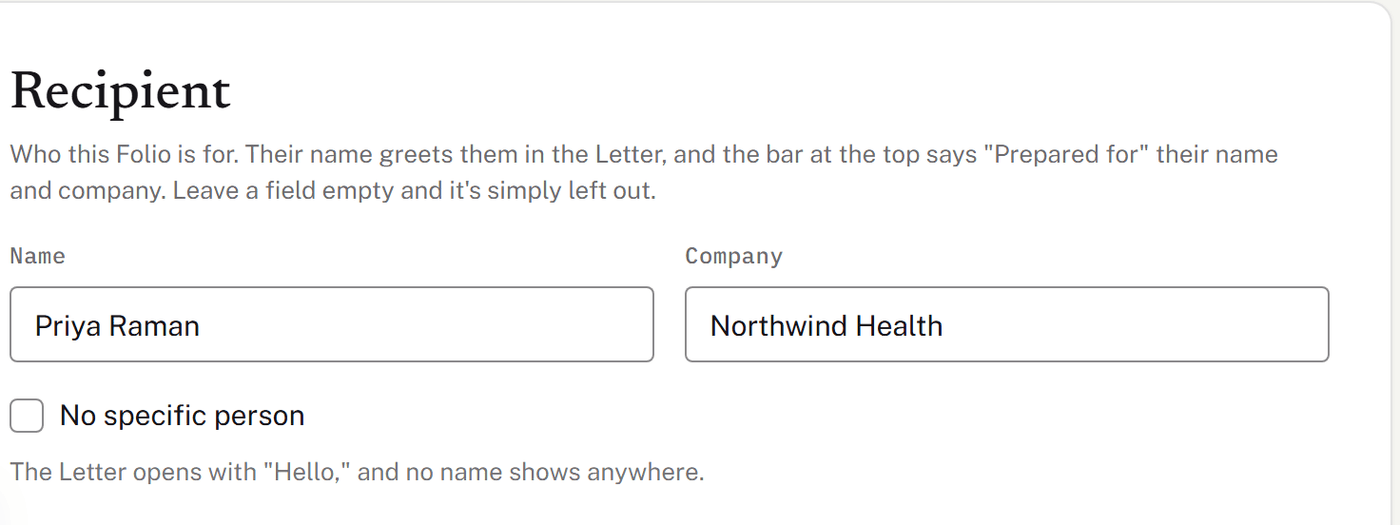
That is often exactly right. If three people on one hiring panel are reading together, send them the same link. Leave the recipient's Name empty and keep the Company, or tick No specific person so the Letter opens with "Hello," and no name shows anywhere.
Giving each reader their own Folio
When each person should be greeted by name, read a note written for them, or have their own link you can turn off, make a copy of the Folio for each one.
Open the Folio and choose Actions, then Duplicate.

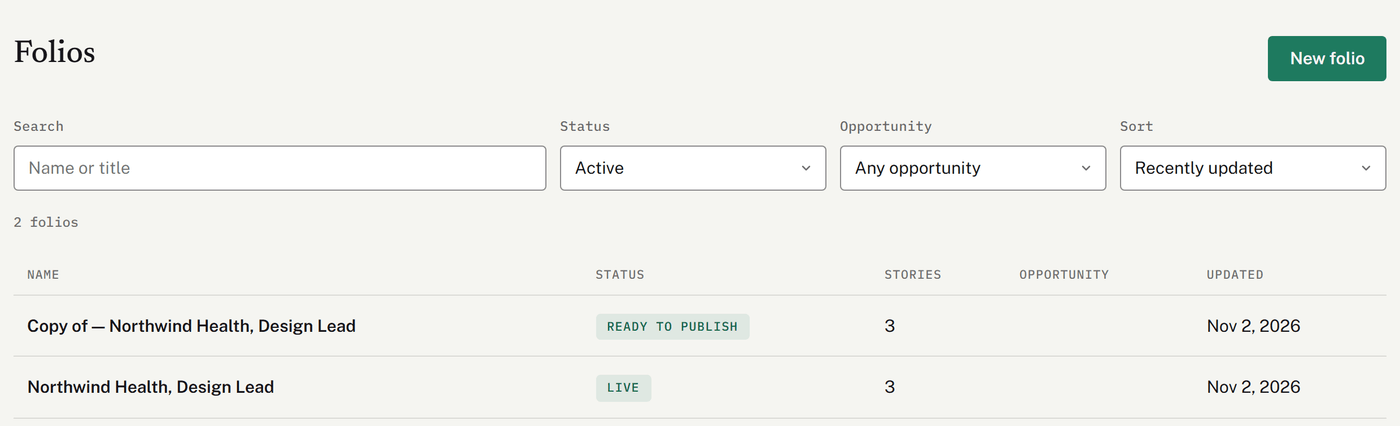
The copy opens straight away, named "Copy of —" and your Folio's name. It is a draft with no link yet, so nothing has been sent.

Change what is about the first reader. Under Recipient, put in the new reader's name and company; the copy starts with the original's. Then read the welcome message and each Why this one, for them note with the new reader in mind.
Rename it under Internal name so you can tell the copies apart. Only you see that name.
Choose Publish. The copy gets its own link in its Share link panel.
What a copy keeps, and what starts fresh
Copied from the original: the title readers see, the stories in their order with the variation chosen for each, the framing notes, the welcome page layout, welcome message and signature headline, how they can reach you, the theme, the recipient, and the Further reading. Further reading uses the same PDFs, video or audio links and written pieces from Files, and copies its links.
Starts fresh: the link, which is created when you publish the copy; any passcode, expiry date or open limit; the availability window; the opportunity it's linked to; and its activity, which starts from nothing.
Keeping track of the copies
Each copy is its own Folio. Folios lists them side by side with their status, and each one has its own Share link panel and its own activity, so you can see which reader's link was opened.
Turning one off doesn't touch the others.
Link each copy to its opportunity under Opportunity if you track them in Network. The list can then be filtered by opportunity.
Edits don't spread between copies. Changing one copy leaves the others as they were. If you change a story, each live Folio keeps showing what it was published with until you publish that Folio again.
Written pieces are shared, not copied. A written piece in Further reading lives in Files, so editing it there updates the draft of every copy that uses it. Each live copy keeps what it was published with until you publish it again. Deleting a piece takes it off every copy straight away.
Telling a story differently for one reader
A story goes into a Folio as one of its variations: a framing of the story for a particular audience. If one reader should see a story told differently, create a variation on the story's page (Create variation), then pick it from the Variation menu on that story in their copy of the Folio. The other copies keep the variation they had.
How many can be live
On Free, two Folios can be live at a time; on a paid plan, as many as you like. Making a copy doesn't use one up, because a copy is a draft until you publish it. If you're at your limit when you publish, Tailored says so, and you can take another Folio down first (Actions, then Take down) or move to a paid plan under Plan & billing.
For the controls on each link, see Share links: passcodes, limits, and turning a link off.
Was this helpful?
Still need help? Ask the team