Use your own domain for your Folios
Share your Folios from an address you own, like folio.yourname.com: the two records to add, and what to do when it isn't working yet.
Written By Tailored Folio
Last updated About 7 hours ago
Your Folio links normally start with share.tailoredfolio.com. With a custom domain they start with an address you own instead, like folio.yourname.com. This page walks through setting one up, and what to do if it doesn't work the first time.
What it is
A custom domain changes the address of your Folio links, nothing else. Readers see the same Folio, with the same passcode, limits and activity, at your address instead of ours.
Every link you copy uses it once it is live, on every Folio in your workspace.
Links you already sent keep working. A share.tailoredfolio.com link takes the reader to your domain.
One domain per workspace. You can change it later.
Custom domains come with the paid plan. On Free, Custom domain in your settings shows what it does and a See plans button.
Before you start
You need a domain you own, and access to the place its DNS is managed. DNS is the list of records that tells the internet where your domain goes. You'll add two records to that list, in one visit.
Use a subdomain if you can. Most people already have a website on their main domain (yourname.com). A subdomain such as folio.yourname.com leaves that website alone. You can use a main domain too; just know that pointing it at us means it no longer shows anything else.
Adding the records
Open the menu under your initials, then Custom domain under Workspace.
Under Your domain, type the address you want, such as folio.yourname.com, and choose Continue. Pasting a full link is fine; we keep just the domain. If you're using a main domain like yourname.com, you can also tick Also use www so that www.yourname.com works too.
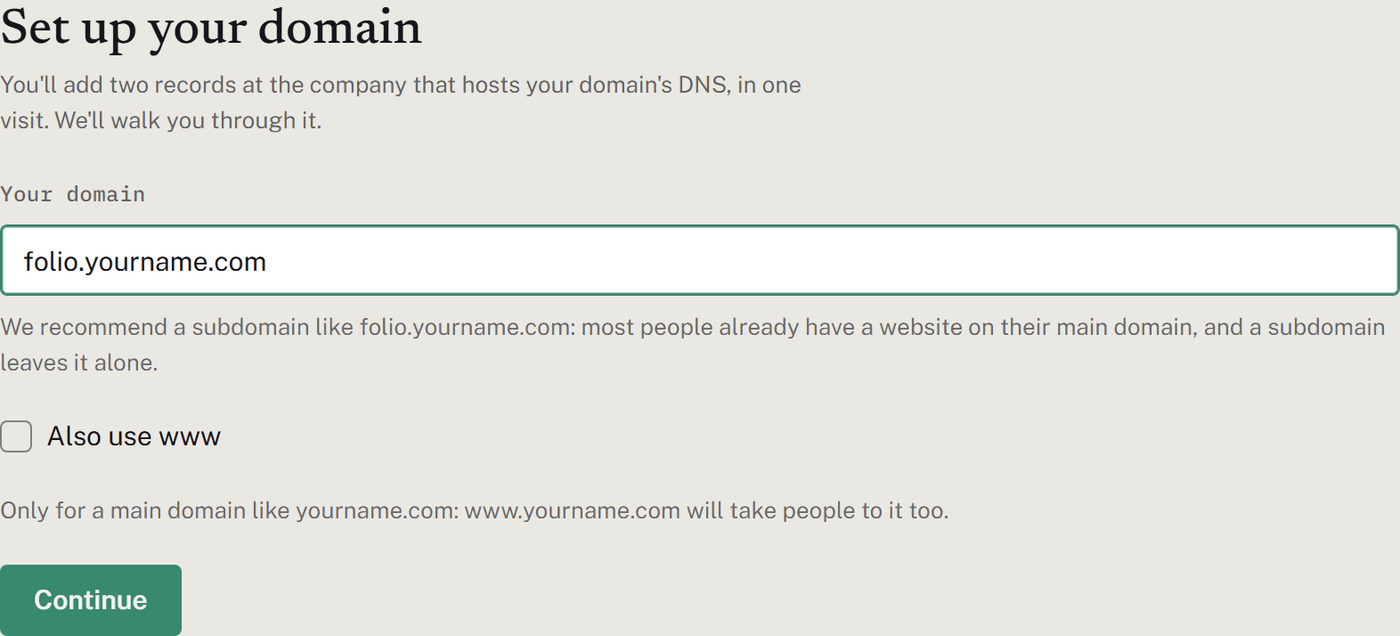
The page now shows Add these records: an Ownership record (type TXT) and a Pointing record (type CNAME for a subdomain, A for a main domain). With www ticked there's a third, www record.
Sign in where your domain's DNS is managed and open its DNS records page. If your DNS is with one of the companies we recognize, the page names it and links to that company's own guide.
Add each record. Each one has the three fields almost every provider asks for, in the same order: Type, Name/Host and Value. Use the Copy button next to each field rather than typing it; the values are long and one wrong character stops the record working.
Save the records at your provider and come back. You don't need to stay on the page.
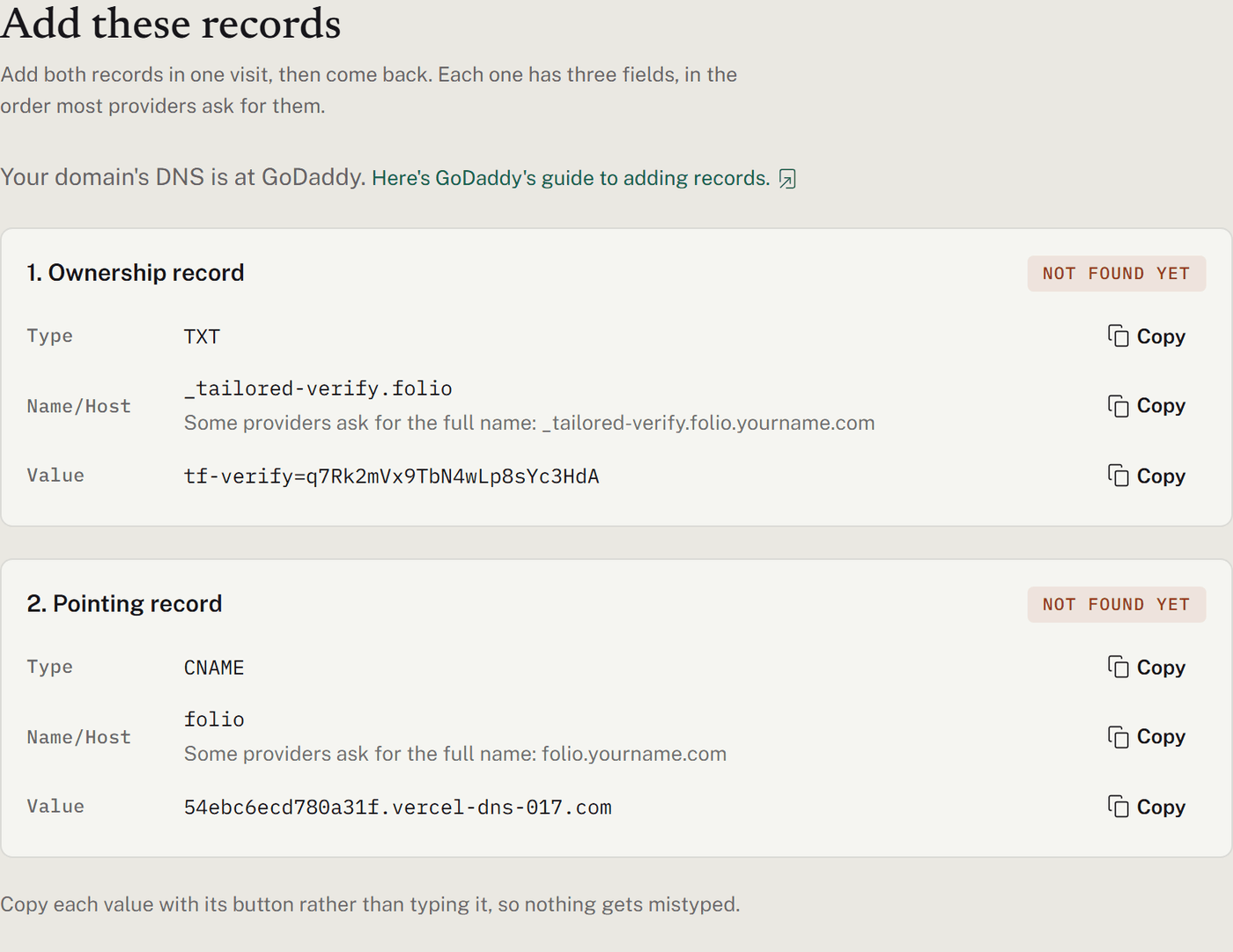
Name/Host, short or full. We show the short name (for example _tailored-verify.folio) and, under it, the full name (_tailored-verify.folio.yourname.com). Most providers want the short one and add your domain on the end themselves. If yours asks for the full name, use that instead. For a main domain, the pointing record's name is @, which most providers use to mean the domain itself.
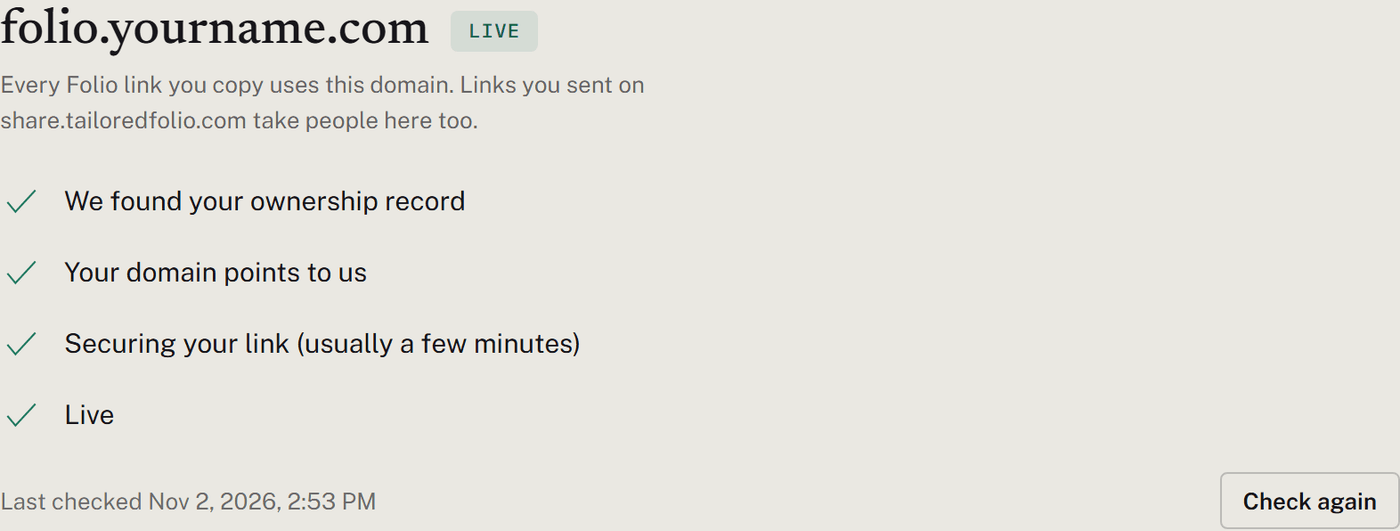
Then we take it from there. We check your domain on our own: every few minutes at first, then every hour for three days, then about once a day. The steps tick off as we find each part:
We found your ownership record. Proves the domain is yours.
Your domain points to us. Sends visitors to your Folios.
Securing your link (usually a few minutes). We get the security certificate that makes the link start with https.
Live. We email you when it gets here.
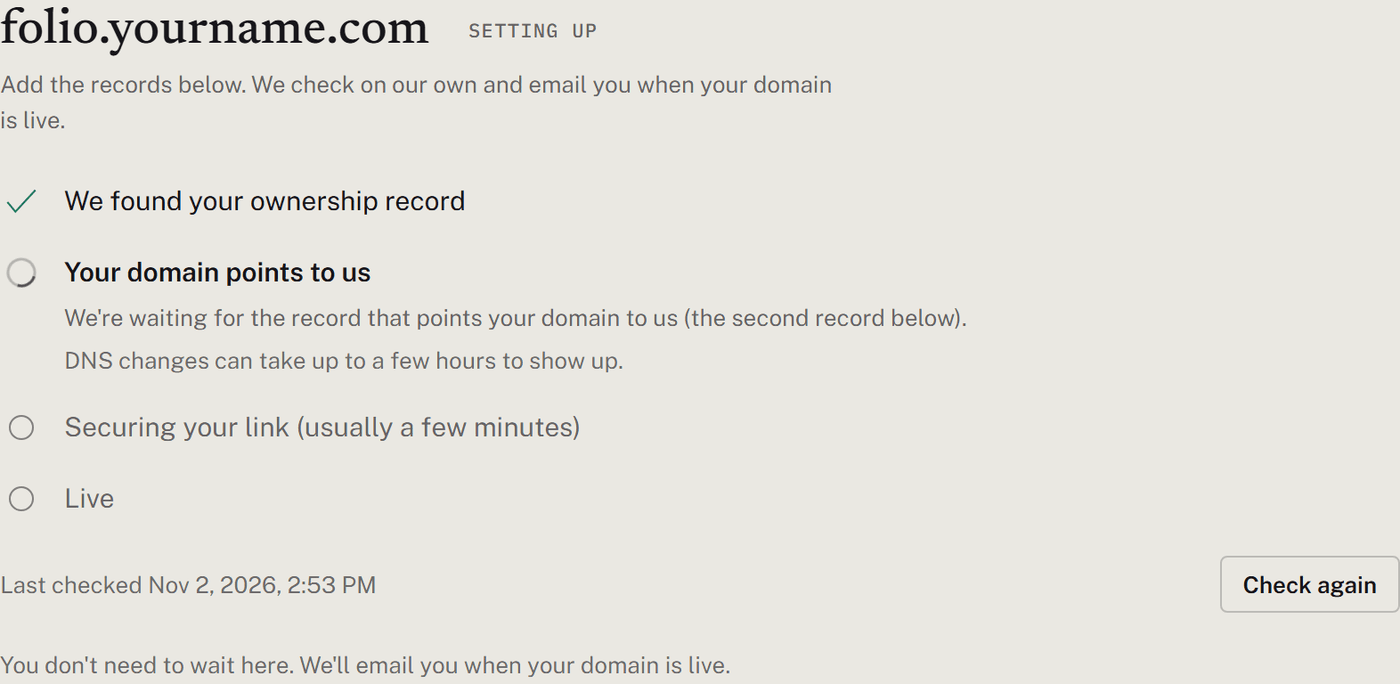
DNS changes can take up to a few hours to show up. Check again runs a check right away if you'd rather not wait.
Where is my DNS?
Your DNS is managed by whichever company your domain's nameservers belong to. That isn't always where you bought the domain. If you bought it at one company and built your website with another, the DNS is often at the second.
To find out, look for "Nameservers" in your account where you bought the domain, or search for an "NS lookup" tool and enter your domain. The nameservers' names say who has your DNS:
domaincontrol.com: GoDaddyregistrar-servers.com: Namecheapsquarespacedns.comorgoogledomains.com: Squarespace Domainsns.cloudflare.com: Cloudflareworldnic.com: Network Solutionsbluehost.com: Bluehostui-dns.com(or .de, .org, .biz): IONOShover.com: Hoverwixdns.net: Wixporkbun.com: Porkbun
When your DNS is at one of these, the Custom domain page says so and links to that company's own guide to adding records. All ten are listed under Provider guides below. If your nameservers belong to someone else, such as your employer's IT team or a web designer, see Send this to whoever manages your domain.
Common traps
Adding the records in the wrong place. Records added where you bought the domain do nothing if its DNS is managed somewhere else. See Where is my DNS?
The domain twice in the name. If your provider adds your domain to the end of every name and you paste the full name, the record ends up as
folio.yourname.com.yourname.com. Use the short name.Adding a second record instead of changing the first. A name can only point one way. If there's already a record for folio (or @), change it rather than adding another. See An existing record is in the way.
Cloudflare's proxy. On Cloudflare, set the pointing record to DNS only (the gray cloud), not Proxied. Proxied hides where the record points, so we can't see it.
A parked or forwarding setting. Many providers show a parked page, or forward a domain to another address, until you turn that off. If your domain or subdomain is parked or forwarding, turn that setting off first. Otherwise it can keep your records from working, even when they're right.
Typing a value by hand. Copy each value with its button.
My domain isn't working yet
The step the page is stuck on tells you what's missing, in plain words. Find that message below. Whatever happens, your Folio links keep using share.tailoredfolio.com until your domain works, so nothing you send breaks.
Ownership record not found
"We're looking for your ownership record (the TXT record below) and haven't found it yet."
Give it time. A new record can take up to a few hours to show up, though it's usually much sooner.
Check the record's name at your provider. It should read
_tailored-verify.folio(or the full name, if your provider asks for that), with nothing doubled. See Common traps.Check the value is exactly what the page shows, starting
tf-verify=. Some providers add quotation marks around TXT values on their own; that's fine.Make sure you added it where your DNS is managed. See Where is my DNS?
If the page says "Another account proved it owns this domain first", a different Tailored Folio account added its ownership record for this domain before you did. If the domain is yours, contact us.
Domain points elsewhere
"We're waiting for the record that points your domain to us (the second record below)."
Add the pointing record if you haven't, with the type the page shows: CNAME for a subdomain, A for a main domain.
If it's there, check its name and value against the page, and give it time to show up.
On Cloudflare, make sure it's set to DNS only.
Sometimes our hosting provider asks for one more thing after your first visit. The page then shows it under Add these records:
The record to change: our hosting provider wants a different value for your pointing record. Change just that record to the value shown.
One more record: your domain was used with our hosting provider before (on another website), so it asks for one more proof of ownership. Add the extra TXT record shown, alongside the others.
An existing record is in the way
"Your domain points to … right now. Change that record to the value below instead of adding a second one."
There's already a record for this name, left over from something else: an old website, a parked page, a link shortener. A name can only point one way, so change that record's value to the one on the page. Don't add a second record beside it.
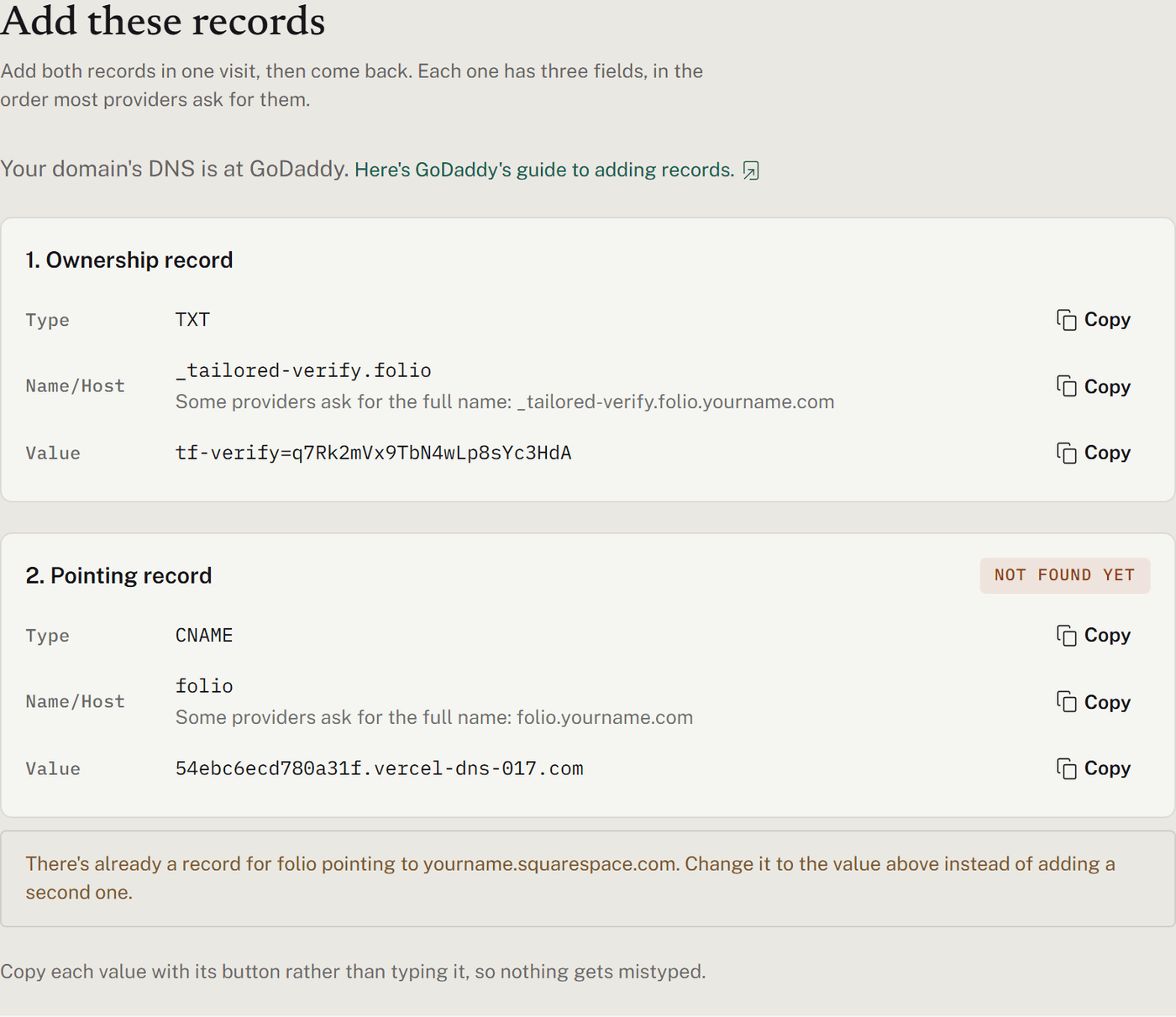
Before you change it, check what it's for. If the name is your main domain and the old record is your website, changing it takes that website down. In that case, remove the domain in Tailored and set up a subdomain such as folio.yourname.com instead.
Certificate blocked by a CAA record
"A CAA record on your domain doesn't allow the certificate we need."
A CAA record lists the companies allowed to issue security certificates for your domain. Ours come from Let's Encrypt. Either add a CAA record that allows it (flags 0, tag issue, value letsencrypt.org) next to the ones you have, or remove the CAA records if nothing else needs them. If you didn't add them yourself, ask whoever manages your domain.
Still waiting
"Your domain points to us. We're getting its security certificate ready." or "Your domain is in line to be set up on our side."
Your part is done. These usually finish within a few minutes, and we email you when your domain is live. If it's been more than a day, contact us and we'll look.
Once it's live
Your domain's main address. Someone may visit folio.yourname.com without a Folio link. Under Send visitors to, choose where they go: an https address on your own domain, or your profile on LinkedIn, GitHub, Behance or a similar site. Leave it empty to show a simple page with your name and logo.
We keep checking. About once a day we make sure the records are still there and the link is still secure. If something changes, the page shows Not working, your links go back to share.tailoredfolio.com so nothing you sent breaks, and we email you what's wrong with a link to the right part of this page. We email again when it works.
Keep the records. Both records need to stay in place for as long as you use the domain, the ownership record included.
Changing or removing your domain
Both are under Change or remove on the Custom domain page.
Change domain: your Folio links move off the old domain as soon as you continue. Links already sent on it keep working for 30 days.
Remove domain: your links use share.tailoredfolio.com again right away. Links already sent on your domain keep working for 30 days, then stop. After that you can delete the records at your DNS provider.
Leaving the paid plan: your links use share.tailoredfolio.com again, and links sent on your domain still take people to the same Folio. We keep the domain set up for 30 days and email you a week before it's removed. Come back to the paid plan before then and it works again with no DNS changes.
Send this to whoever manages your domain
If someone else looks after your domain, such as an IT team or the person who built your website, send them the records instead of their login. Copy each record from the Custom domain page into a message like this:
Hi, could you add these DNS records for [your domain]? They let me share my portfolio from this address.
1. Type TXT, Name [name], Value [value]
2. Type CNAME (or A), Name [name], Value [value]
If a record already exists for that name, please change it rather than adding a second one, and leave any proxy off. If there's a CAA record, it needs to allow letsencrypt.org. Thank you!
Tailored checks for the records on its own and emails you when the domain is live, so there's nothing more for them to do.
Provider guides
Each company's own guide to adding DNS records. These pages belong to the providers, and they can change. If yours looks different from what's described here, follow your provider's guide for where to click, and use the values from the Custom domain page.
Last checked: November 6, 2026. We tested these steps end to end on GoDaddy with a real domain. We haven't tested the other providers ourselves. If a link here is broken, let us know.
Was this helpful?
Still need help? Ask the team