Your career: headline, LinkedIn and employer history
Describe your work and where you've done it, import jobs from a resume, and see where your career shows up on Folios.
Written By Tailored Folio
Last updated About 5 hours ago
Your career holds how you describe your work and where you've done it. Tailored Folio reads it before it asks you anything, so its questions and drafts fit your background. Open it from your avatar menu under Settings, then Your career. Everything on the page saves as you type.
Headline and LinkedIn
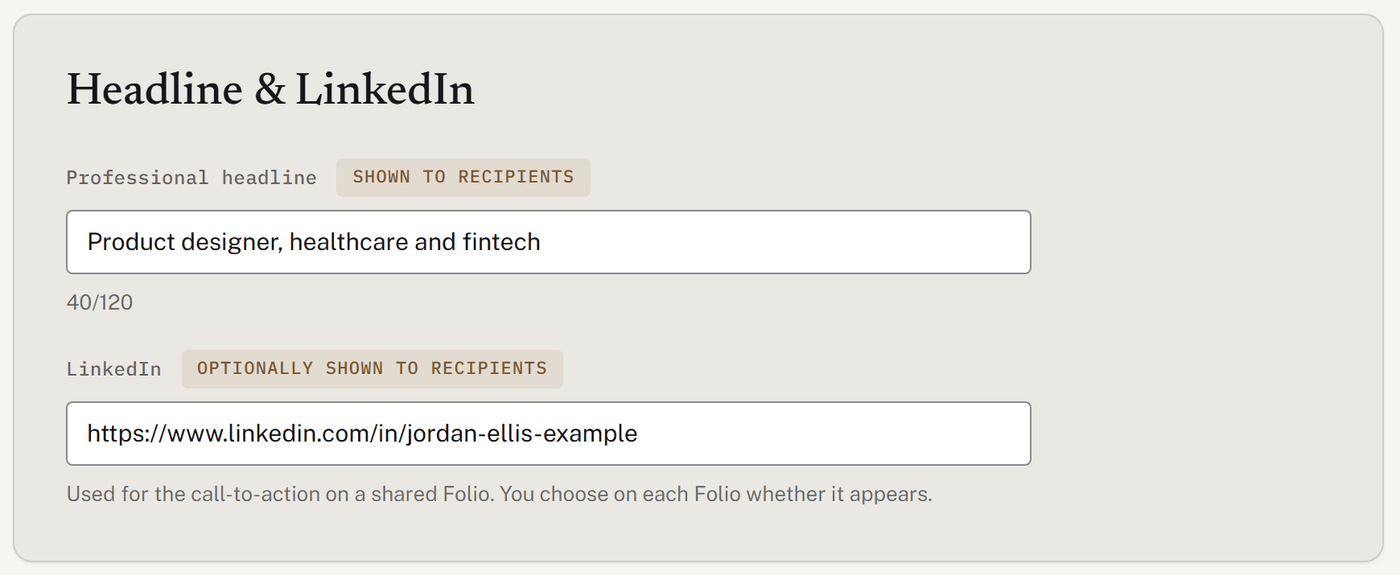
Professional headline is shown to readers next to your name on your Folios. Up to 120 characters fit a reader's screen; the counter warns you when you go past that.
LinkedIn is your profile address, starting with https://www.linkedin.com/in/. It's used for the LinkedIn button on a shared Folio, and you choose on each Folio whether that button appears.
Employer history
List the places you've worked: Organization, your Role there, and Start and End dates (2024, 03/2024, 03/15/2024 or March 2024). Numeric dates are read in the date order that applies to you, so if you use DD/MM/YYYY, type the day first; 2024-03-15 always works. See Dates and time. Leave End empty for the job you're in now. Choose Add employer for another row.
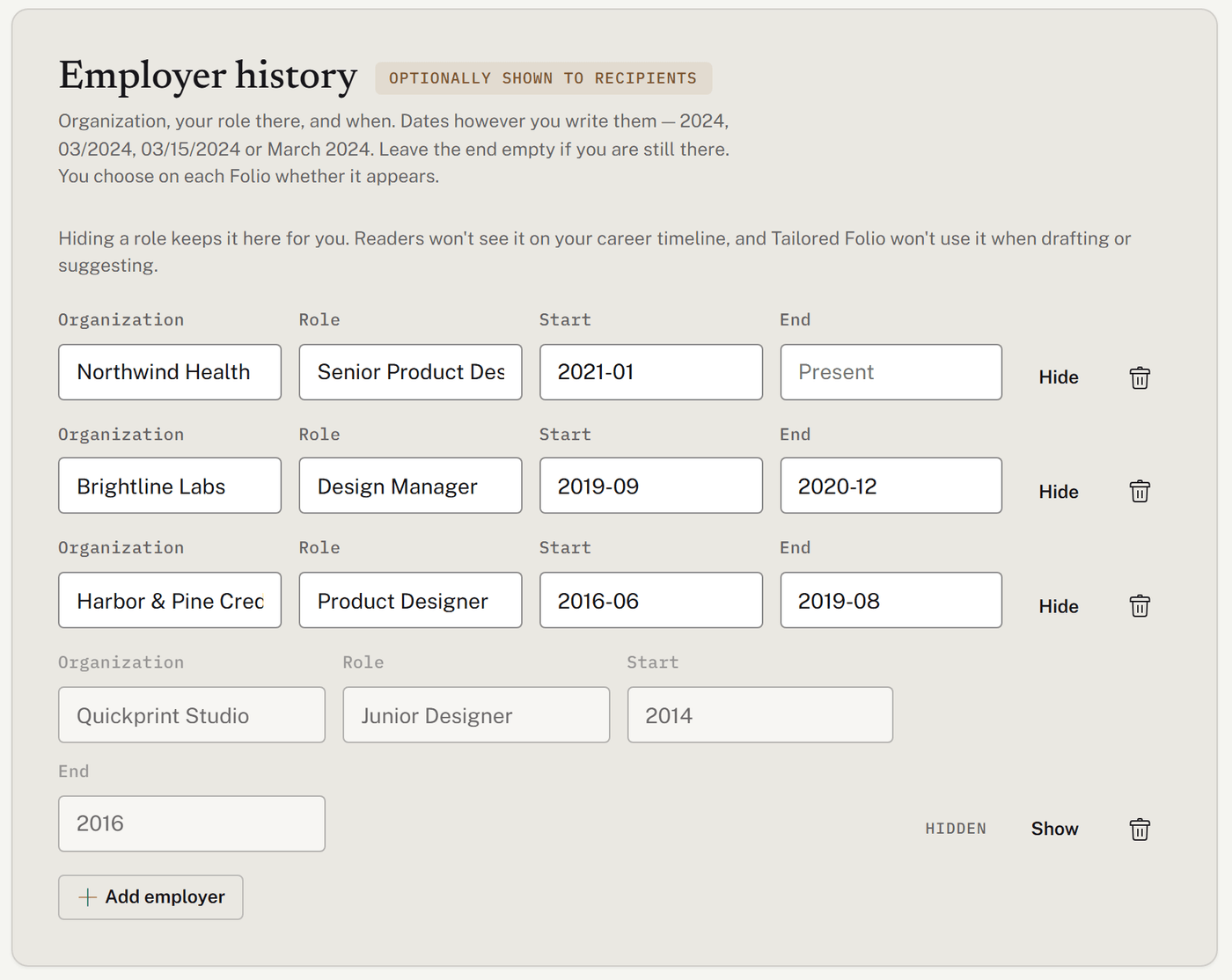
The list sorts itself newest first when you finish editing, with your current job at the top.
Hide keeps a job on the list for you, but readers won't see it on your career timeline, and Tailored Folio won't use it when drafting or suggesting. Show brings it back.
The trash icon removes a job straight away.
You can list up to 50 jobs.
Importing from a resume
Import from a resume reads the employers and roles out of a PDF of your resume or LinkedIn profile, so you don't have to type them. If you don't see this card, AI features aren't available right now, so add your jobs by hand.
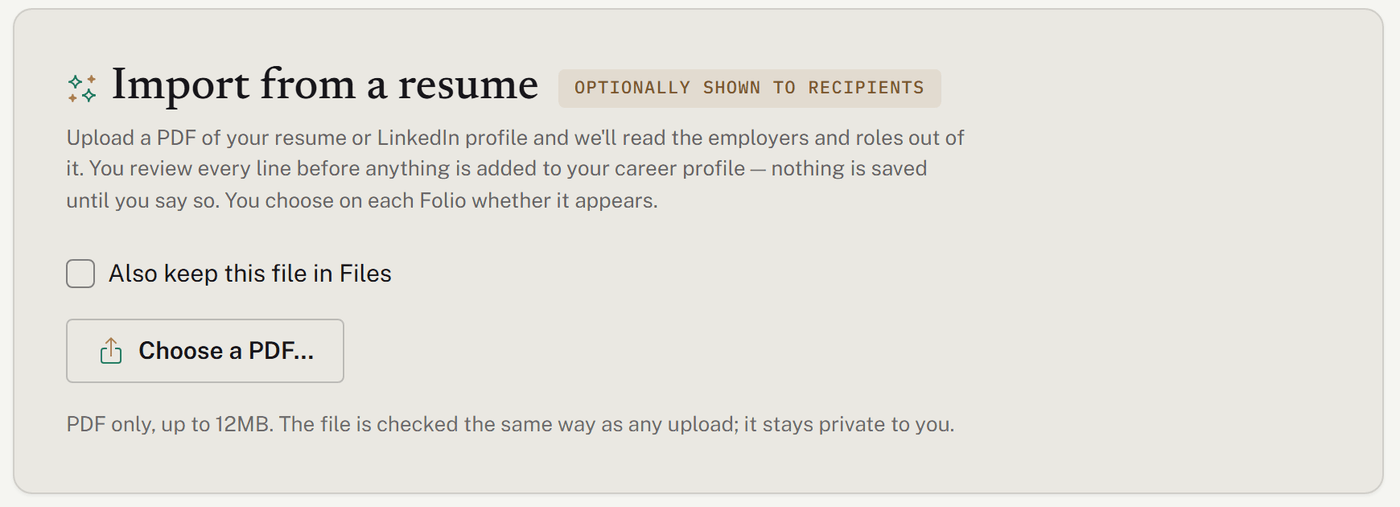
Choose Choose a PDF…. The file can be up to 12 MB and 25 pages, and it's checked like any other upload. Tick Also keep this file in Files if you want a copy in your library.
Reading it usually takes under a minute.
Check every position it found, fix anything that's off, and untick any you don't want. Each one needs an organization and a role.
Choose Add … positions to my career profile (it shows how many), or Discard all.
An import only adds jobs; it never replaces the ones you have, and it skips any you already list. It reads jobs only, not education, skills or a summary. An import counts toward your daily AI allowance.
If it can't use the file, it says why: for example, a scanned PDF with no readable text, or one that didn't pass the upload checks. Choose Try another file.
The resume you upload is kept under Imported files on this page, where you can download or remove it. A Folio can offer that file to readers with a Download resume button, which you turn on in the Folio's How they can reach you settings. If you upload a new resume with the same name, you can replace the old one everywhere it's offered.
Where your career shows up
On new stories. The Job title field suggests your roles, and the Demonstrates suggestions lean toward them.
In AI drafts. Tailored Folio uses your headline and the jobs you haven't hidden as background when it writes.
On your Folios. Your headline appears next to your name. The Career timeline welcome layout places your stories along your jobs, newest first; publishing that layout needs Pro.
The career timeline
Each job you haven't hidden becomes a period on the timeline. A story goes under the job at the same organization whose dates include when the story started. If none matches, it goes under any job at that organization, then any job whose dates include the story's start. If nothing fits, it goes under Other work.
A job's organization name is shown to readers only when no story sits under it, or when every story under it uses a variation marked Public-safe. Otherwise readers see the role and dates without the name.
The timeline is fixed when you publish. If you change your employer history, publish the Folio again to update what readers see.
Was this helpful?
Still need help? Ask the team