Stories: writing down your work
Start a story, fill in the rest from it, keep names private, and make variations for readers.
Written By Tailored Folio
Last updated About 5 hours ago
A story is your private record of one piece of work: what the situation was, what you did, and what came of it. Only you see your stories. Readers only ever see a variation of a story, inside a Folio you publish.
Starting a story
Open Stories and choose New story. There are two ways to write one:
Guided, six blocks. Six prompts walk you through the story: Context, Complexity, Opportunity, Approach, Outcome and Takeaway. Answer them in any order.
Bring your own. One box for the whole story. Use it when you already have the material and want to paste or write it in one piece.
Both start with Details:
Title is the only thing you must fill in. A working name is fine; only you see it.
Organization is the employer or client. It stays private unless you mark a variation Public-safe.
Job title and Industry. Job title suggests the roles from your career history.
Start and End, written however you like: 2024, 03/2024 or March 2024. Numeric dates are read in the date order you use, so if you write the day first, type it that way; 2024-03-15 always works. Readers see only as much as you gave: 2024, Mar 2024, or a full date in the format that applies (see Dates and time). Leave End empty if the work is still going; the story becomes Active work.
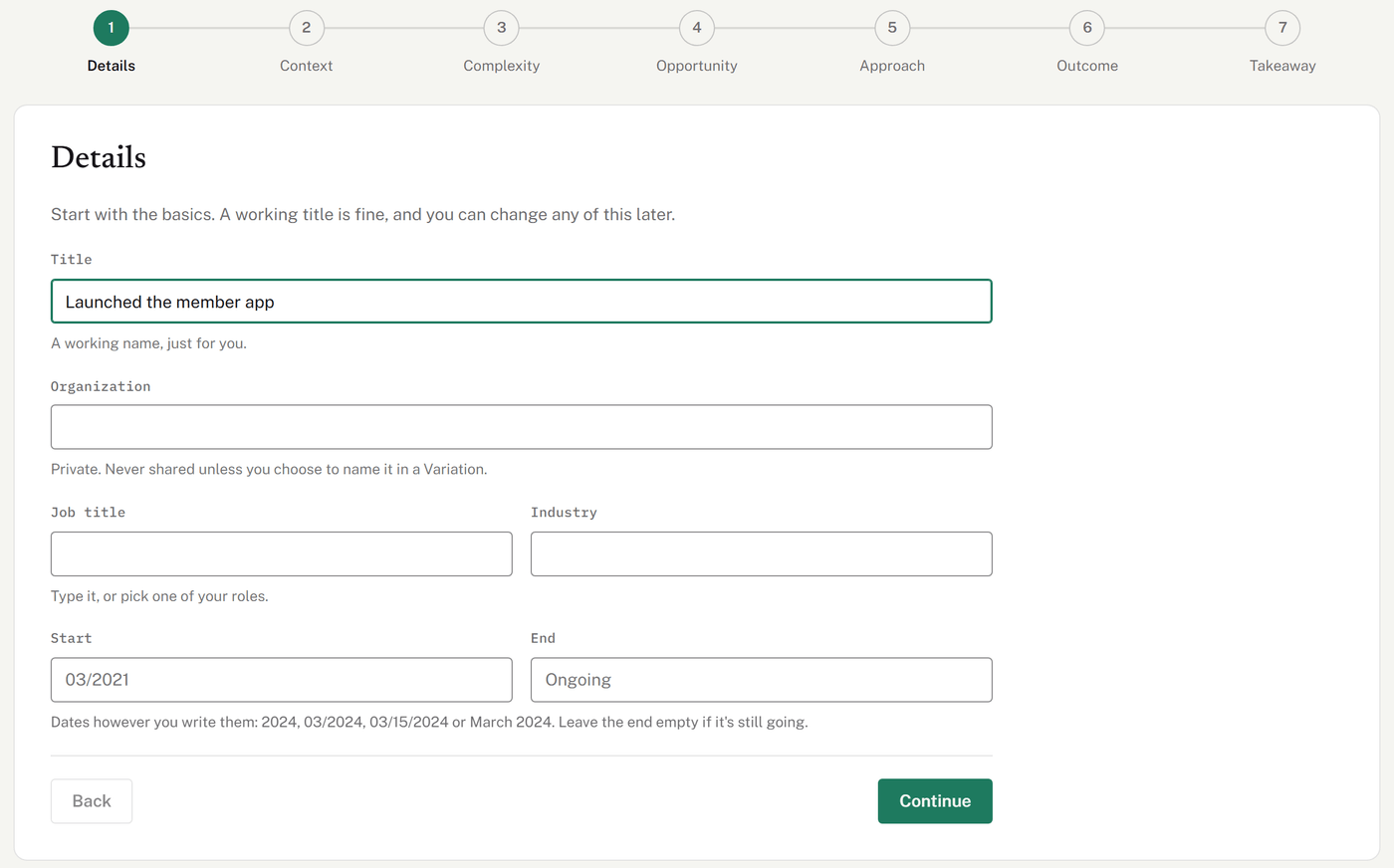
Choose Continue to create the story and move through the prompts. Write naturally: bullet points and rough notes are fine, because the polish happens later in a variation. The Ideas to get you started panel beside each prompt has questions to get you going.
Everything saves as you go. If you leave partway through, the story reopens at the step you reached, and you can click back to any earlier step. Choose Save Story on the last step to finish and open the story's page. Until then the story shows as Draft in Stories; after that it shows as Finished. Finished only means you're done writing it. Readers see a story once one of its variations is ready to share and in a Folio you publish.
Filling in the rest from your story
When you save a story, Tailored can read it and fill in the parts that are tedious to type. It takes about a minute, and you can keep working while it runs.
Tags, Demonstrates and The work (Skills, Methods and Deliverables) are added straight to the story. Tailored only adds; it never removes anything you entered. Edit or remove anything that doesn't fit.
Behind the story (Your role, People and Texture) arrives as suggestions, each marked Suggested from your story. Nothing there is saved until you choose Accept, or Accept all. Your private notes are never suggested.
Names it spots go on the story's Names to keep private list, marked Spotted by AI. See Keeping names private.
If it couldn't fill these in, choose Try again. If it never ran, use Fill in from my story. If AI drafting isn't available, the page says so, and you can fill these in yourself. On a very long story, the page also says that the AI reads about the first 2,000 words of a section. The rest stays in your story, but suggestions and variations won't use it.
The story page
Everything about a story is on one page. From the top:
the title and details, with Tags ("anything else you'd filter by") and Demonstrates: the two or three things this story shows you can do;
Files, the screenshots and documents that back the story up, beside Variations;
Behind the story and The work;
Names to keep private;
Your story, the six blocks or your own text;
Version history, earlier versions of your writing.
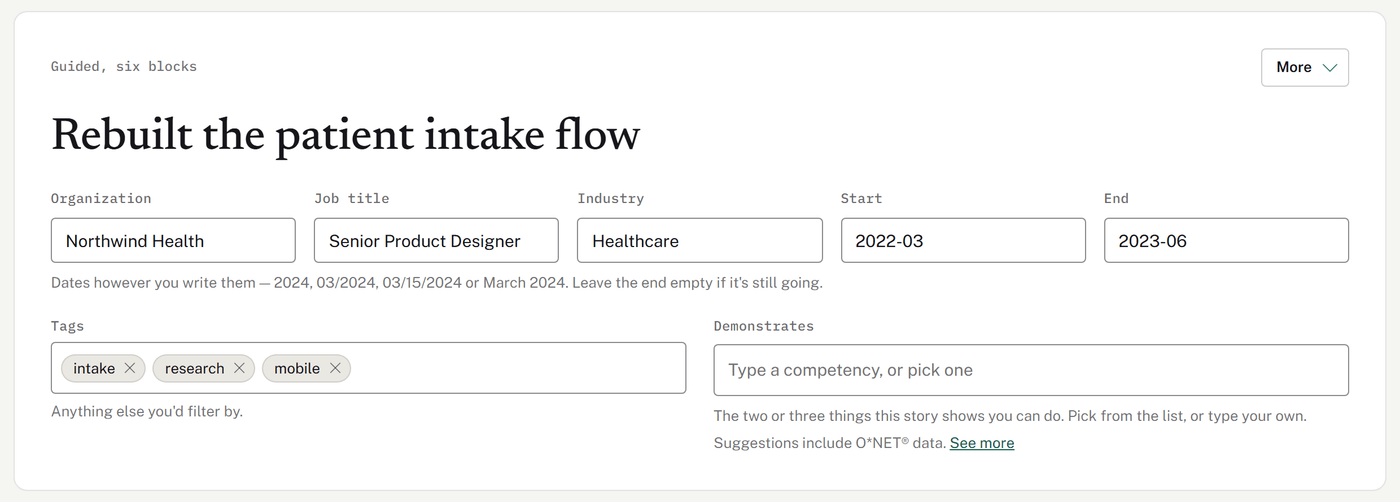
The More menu has Duplicate and Archive. A duplicate copies the details, the story's text and its files, but not its variations.
If something you paste carries hidden characters, which can make text display oddly, the page tells you how many there are and offers Remove them. Images in pasted text are left out; upload them as files and attach them instead.
Keeping names private
Names to keep private lists the people, organizations and products that the AI should keep out of anything a reader sees. Each one has a Name, a Type and a Describe as: the words to use in its place, such as "the clinic's medical director". If you leave Describe as empty, a neutral word is used: "the organization", "a colleague" or "the product".
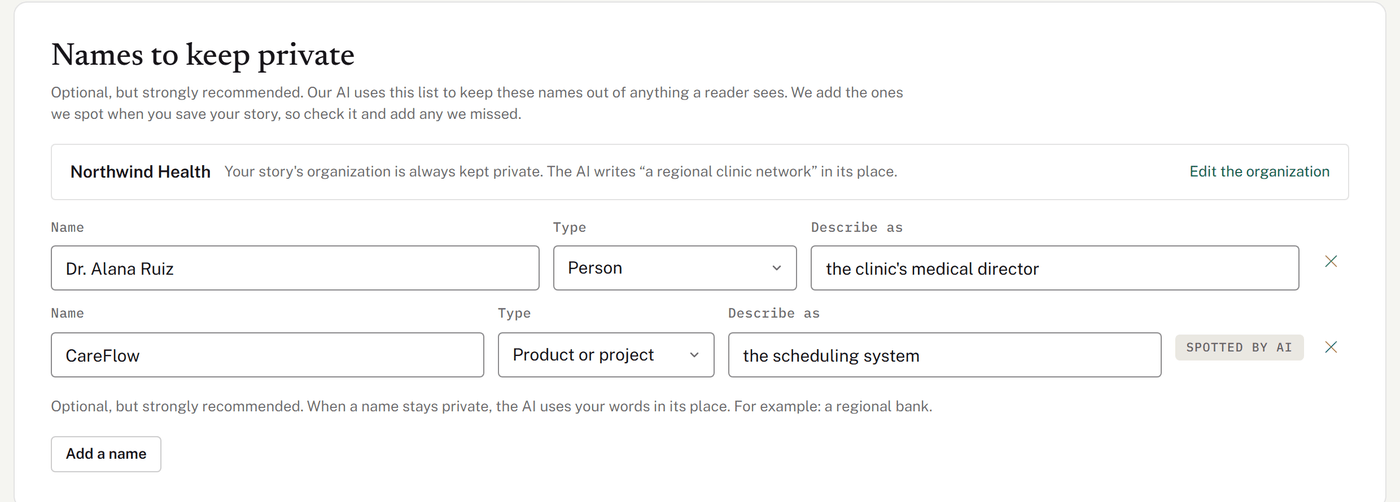
The story's own organization stays private unless you mark a variation Public-safe. Until then, the AI uses the Describe as you set on that organization in Network.
Words you type into a variation yourself are left exactly as you wrote them. If one of these names is in a variation, the variation's page tells you, and the publish box warns you before it goes out. It's a warning, not a block: change the wording, or mark the variation Public-safe.
A variation marked Public-safe is the exception: there, names may appear as written.
A story can hold up to 40 names.
Variations: what readers see
A variation is a version of a story shaped for a particular reader or purpose. A story can have as many as you like, and each has its own sharing settings.
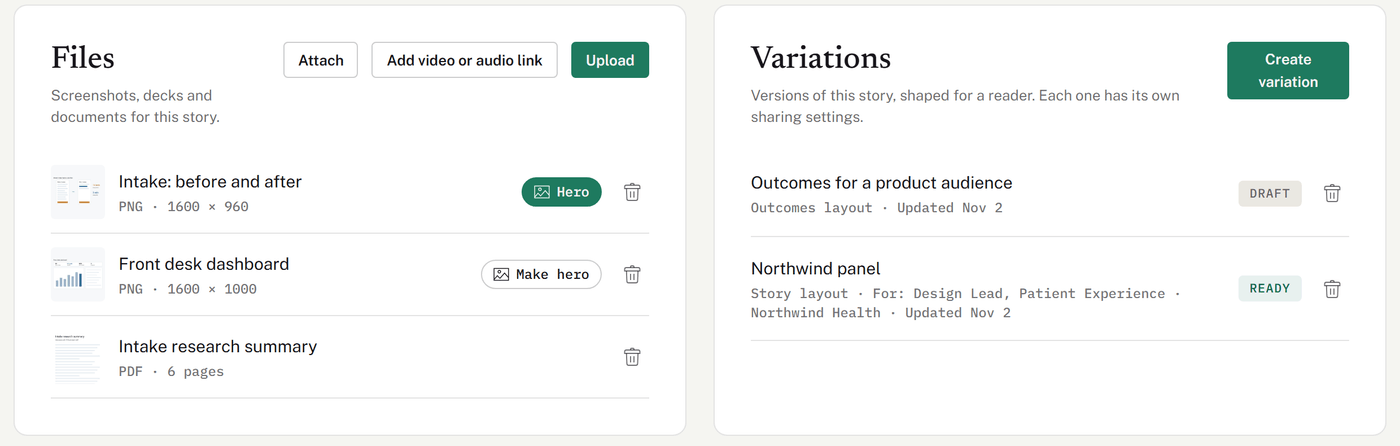
Choose Create variation and fill in:
Variation name, just for you. Readers see the headline, not this name.
Opportunity (optional). Linking one tells the AI who this is for.
Purpose: what this version needs to do, and who's reading it.
Layout: Story, Outcomes (up to three key results) or Visual (your files laid out alongside the story). You can't change the layout later.
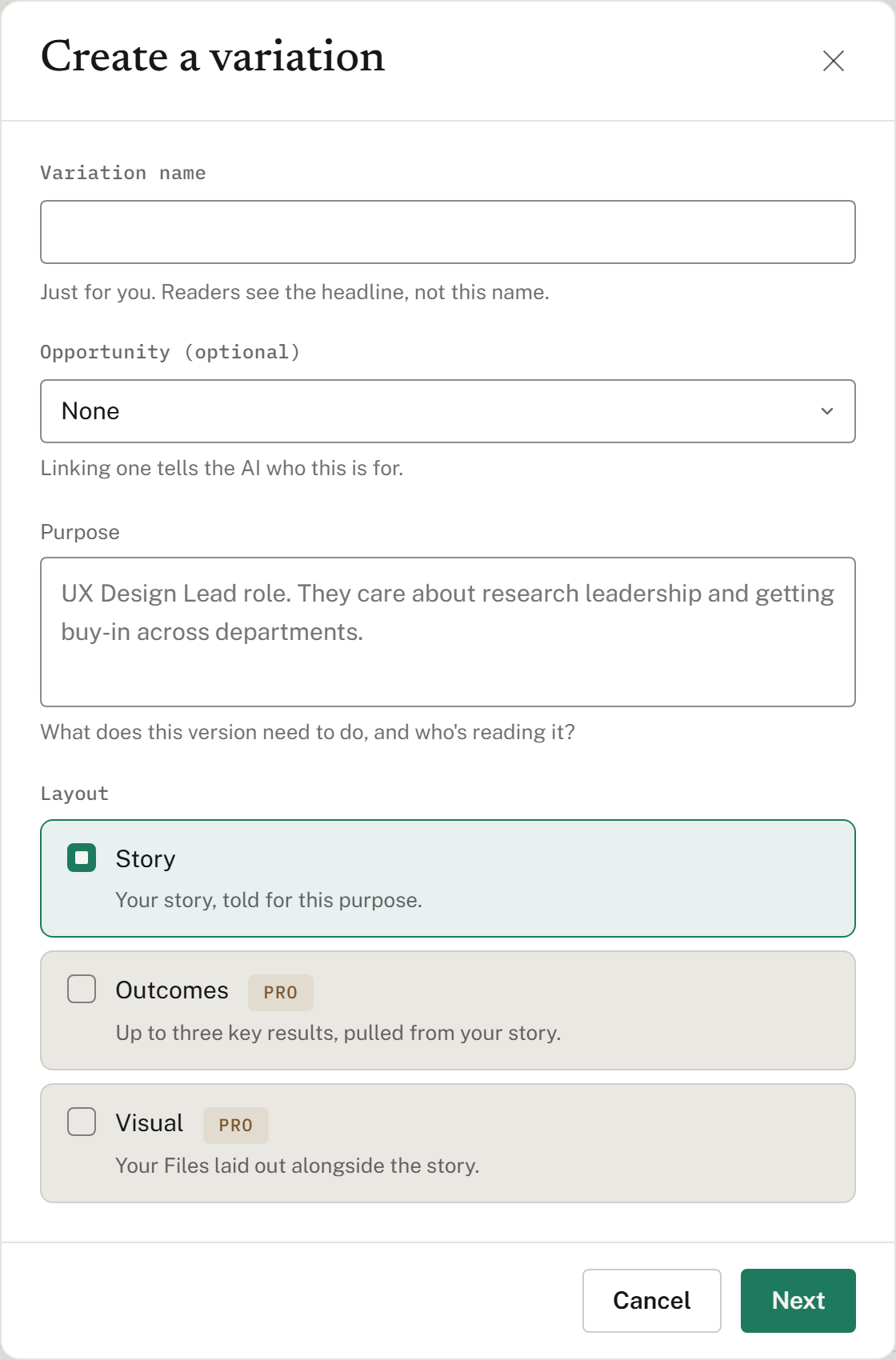
On Free you can build and preview Outcomes and Visual variations, and you get one AI draft for them, but publishing them needs Pro. Story variations can be published on any plan.
Making a variation ready to share. Choose its Confidentiality (Public-safe, Anonymized, Permission required or Private only) and select Save. Only saved variations with a confidentiality are ready. The story's organization is shown to readers only on a Public-safe variation.
Putting it in a Folio. A story goes into a Folio as one of its variations, picked from the Variation menu on that story in the Folio. Only a variation that's ready to share can be published. A variation that a Folio uses can't be deleted until you change the Folio.
Active work
Some work isn't finished yet: a project that's still running, or a role you're in now. A story with a Start date and no End date is Active work, the way a resume shows a current role. There's no separate switch.
Readers see the end date as "Present", in every layout. There's no "in progress" badge for them.
In Stories, these stories carry an Active work badge, and there's an Active work filter. When stories are sorted by date, Active work counts as ending today.
AI drafts treat the work as ongoing: present tense, results so far, and never an outcome that hasn't happened yet.
To end it, fill in the End date. Clear it again and the story is Active work again.
A story you wrote earlier with no end date now reads "Present" too. If that work is finished, add the end date.
When you update an Active work story that's in a live Folio, the Folio's publish box suggests publishing the change, so readers aren't left with an older version.
Finding your stories
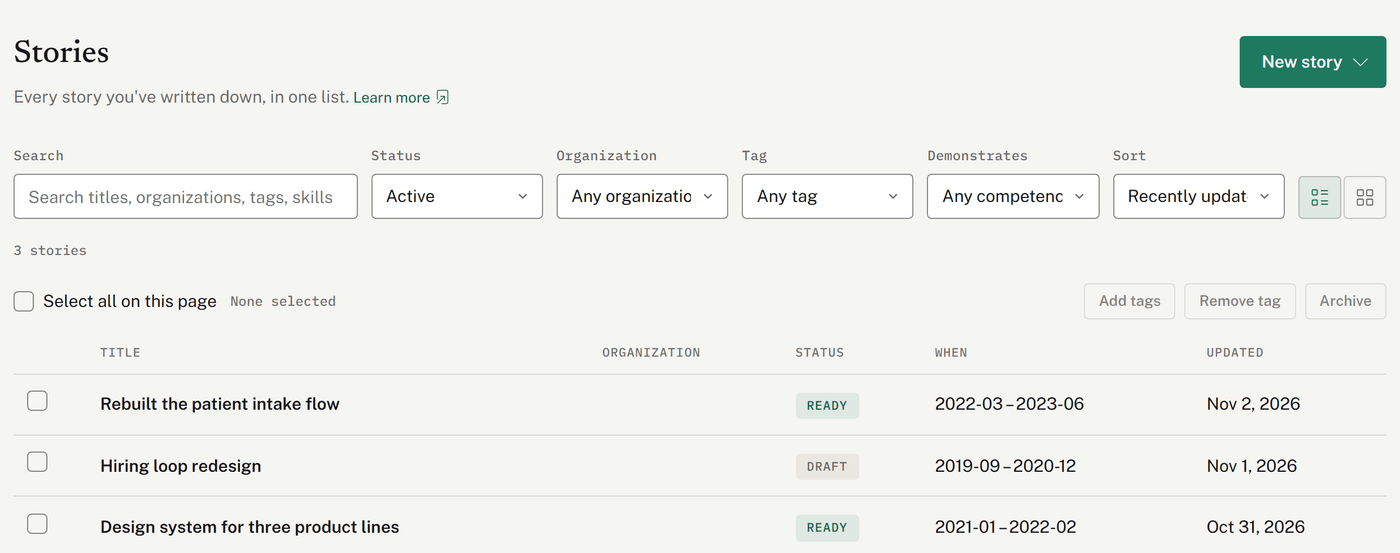
Stories lists everything you've written down. Search covers titles, organizations, tags and skills, and you can filter by status (Draft, Finished or Archived), organization, tag, what a story demonstrates and Active work, then sort and switch between a list and a grid. In the list, tick several stories to archive them or add or remove a tag at once.
There's no limit on how many stories or variations you can have, on any plan.
Archiving a story
Stories aren't deleted; they're archived. Choose More, then Archive. The story leaves your working library, but nothing is deleted:
a Folio that's already live keeps showing it;
it can't be added to a new Folio, and a Folio that includes it can't be published again until you restore it or take it out.
To bring one back, set the Status filter to Archived, open the story, and choose More, then Restore.
Was this helpful?
Still need help? Ask the team