Branding: how your Folios look
Pick a look, make your own preset with fonts, colors and a logo on Pro, and when readers see a change.
Written By Tailored Folio
Last updated 4 days ago
Branding sets how your Folios look to the people you share them with: a look, its fonts and colors, and on Pro your own logo. It never changes how the app looks to you. Open your avatar menu, then Settings, then Branding. Only the workspace owner can change it.
Previewing a look
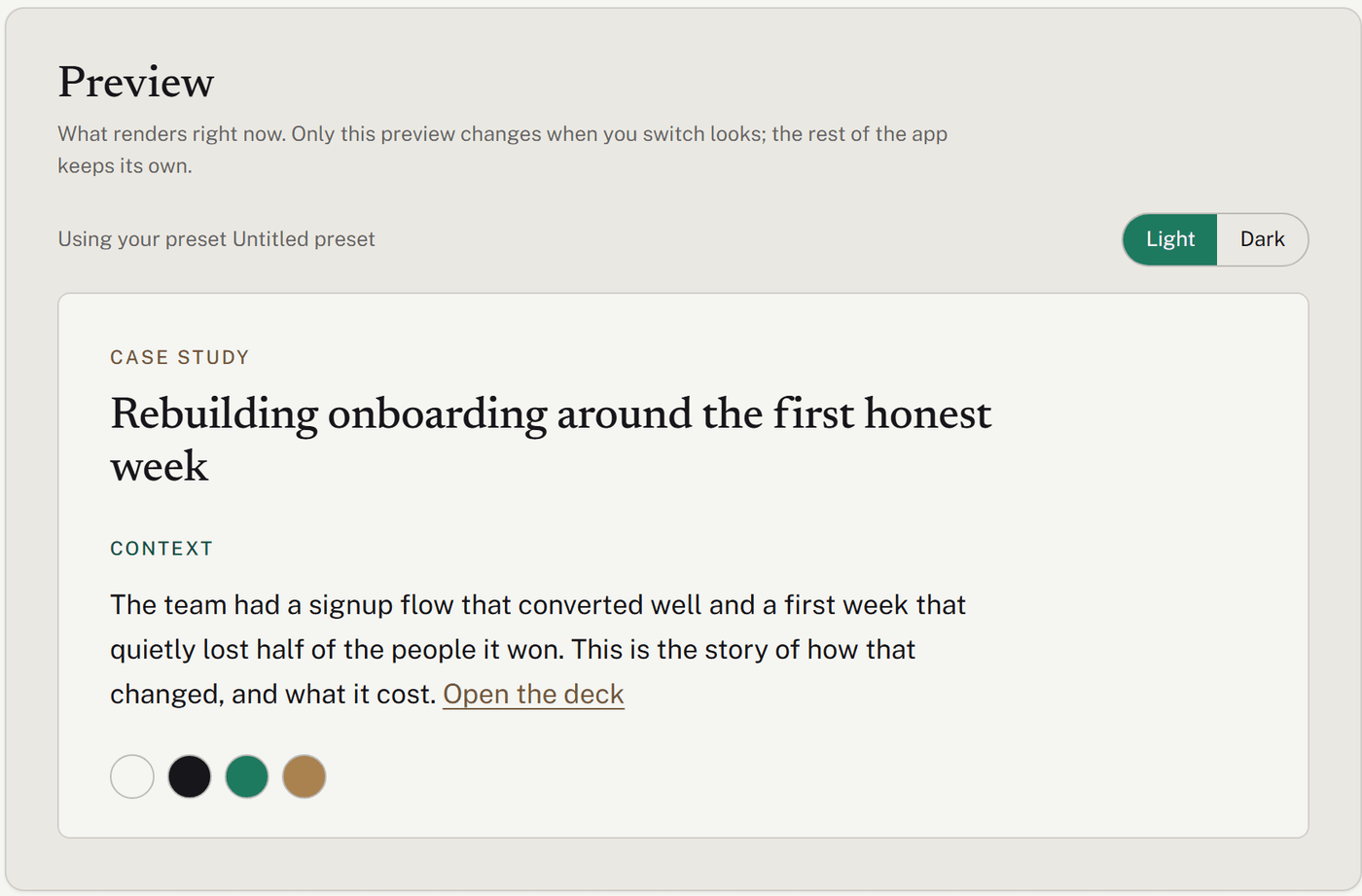
The Preview at the top shows a sample story the way readers will see it, with the look in use right now. Switch between Light and Dark to see both versions a reader can choose from.
Established looks
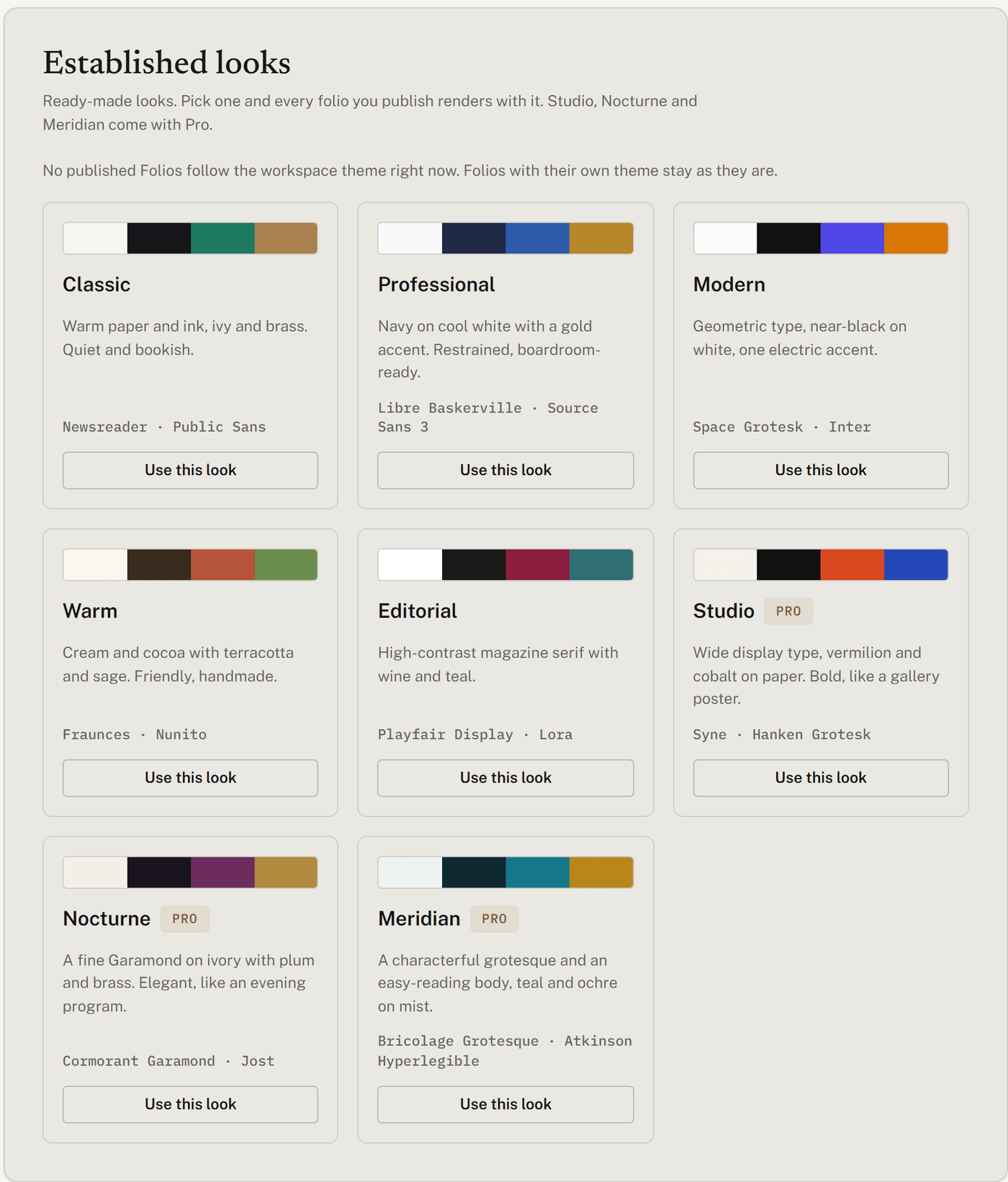
Eight ready-made looks, each with its own fonts and colors. Choose Use this look and every Folio that follows the workspace look switches to it.
On every plan: Classic (the default), Professional, Modern, Warm and Editorial.
With Pro: Studio, Nocturne and Meridian. On Free you can Preview them here, but not use them.
Your own presets (Pro)
On Pro you can make presets: your own fonts, colors and logo, saved under a name. One preset is active at a time, and new Folios use it.
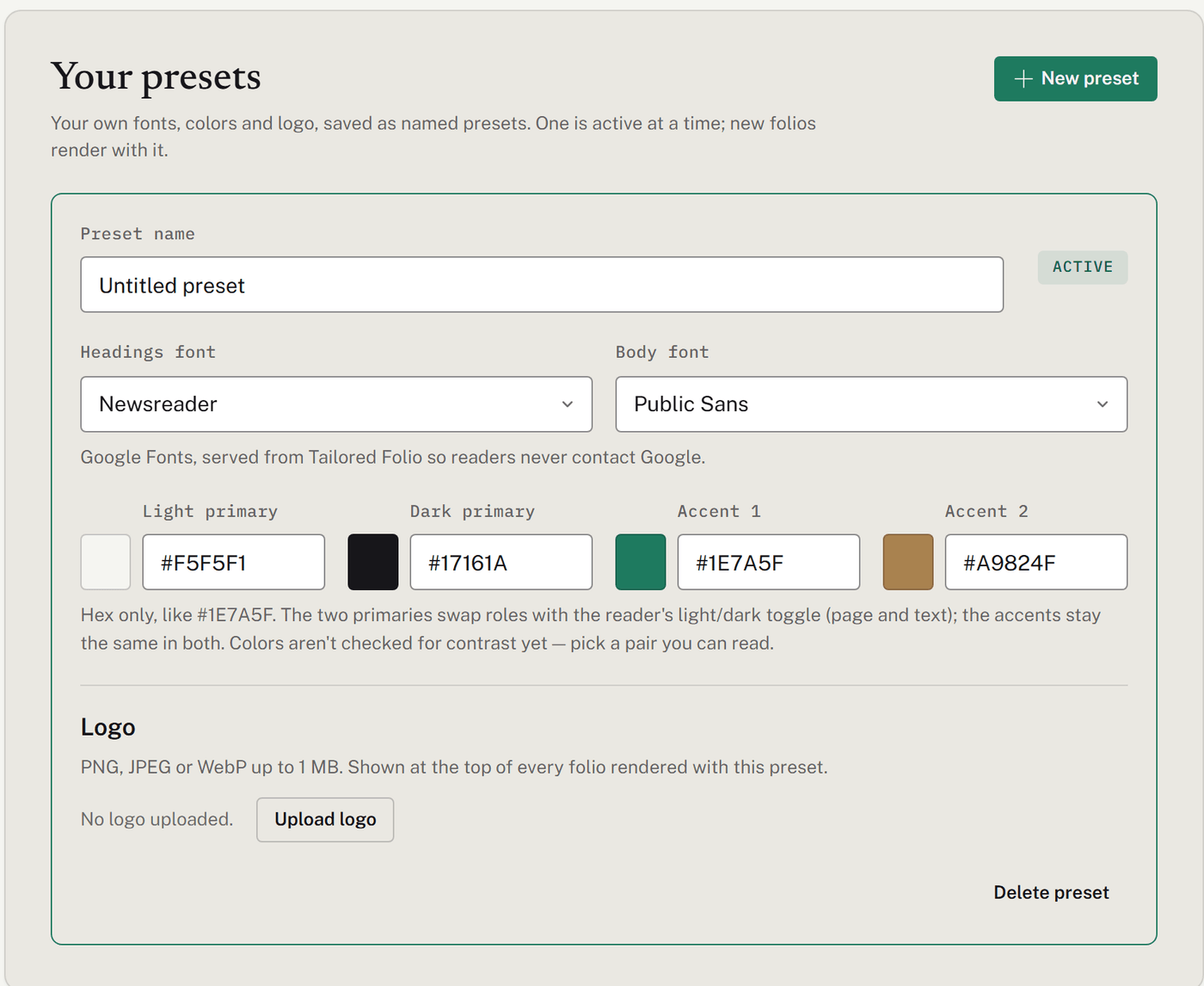
New preset starts as a copy of the look you're using. The first preset you make becomes active.
Headings font and Body font come from a list of Google Fonts, served from Tailored Folio so your readers never contact Google.
Colors are six-digit hex codes, like #1E7A5F. Light primary and Dark primary swap roles when a reader switches between light and dark; the two accents stay the same. Colors aren't checked for contrast yet, so choose a pair you can read easily.
Logo: a PNG, JPEG or WebP, up to 1 MB and between 32 and 2,000 pixels on each side. It's checked before it's used, and shown at the top of every Folio that uses this preset. Turn off Show the logo on folios to keep it saved but hidden.
Make active switches to another preset. Choosing an established look turns your presets off until you make one active again.
Delete preset asks what to use instead if it's the active one.
One Folio, a different look
Each Folio follows the workspace look unless you choose otherwise. In a Folio, under Preview and publish, the Theme menu lists Workspace default, the established looks and your presets. The choice saves at once.
When readers see a change
Looks apply live. Readers see a new look, or a new logo, the next time they open the link; you don't need to publish again. This includes Folios that are already live: switching the workspace look changes every published Folio that follows it, and the page tells you how many that is.
Free and Pro
On Free, your Folios use one of the five free looks and show a Powered by Tailored Folio line.
On Pro, you get all eight looks and your own presets with a logo, and the Powered by line goes away.
If your workspace goes back to Free, readers see a free look instead: Classic in place of a Pro look, or your chosen free look in place of a preset. The logo and the Powered by line change back too. Nothing is deleted; the Branding page shows what readers see now next to what you saved, and when you upgrade again, your saved look comes back on its own. If you choose a different free look in the meantime, make your preset active again after upgrading.
If a payment fails, Branding tells you the date your Folios will switch to a free look unless you update your card.
Was this helpful?
Still need help? Ask the team