Files: images, PDFs and written pieces
Upload, write, organize and attach files, video or audio links and written pieces, and what readers see of them.
Written By Tailored Folio
Last updated About 5 hours ago
Files are the screenshots, images, PDFs, video or audio links and written pieces that back up your work. You keep them in one library, attach them to stories or add them to a Folio's Further reading, and readers see them in a Folio you publish. Written pieces go on Folios only, not on stories. Open Files from the top menu.
What you can upload
- Images: JPEG, PNG, GIF or WEBP, up to 10 MB and 8,000 pixels on the longest side.
- PDFs: up to 12 MB and 25 pages. A password-protected PDF can't be checked, so remove the password first.
- Video and audio: a link to YouTube, Vimeo, Loom, Spotify or SoundCloud, added with Add video or audio link. The file stays with that service. See Video and audio links below.
- Written pieces: text you write or paste, such as an op-ed or an article, made with Write a piece. Nothing is uploaded. See Written pieces below.
A workspace can upload up to 100 files a day. Storage is 5 GB on Free and 20 GB on Pro. If a file would take you over, Tailored says so before it uploads; delete files you no longer need, or contact support.
Uploading a file
- Choose Upload file, then Choose a file.
- For an image, pick the square crop used for its preview.
- Give it a Title and Alt text, a short description of what the image shows for people who can't see it. Both are required. Caption and Credits or source are optional.
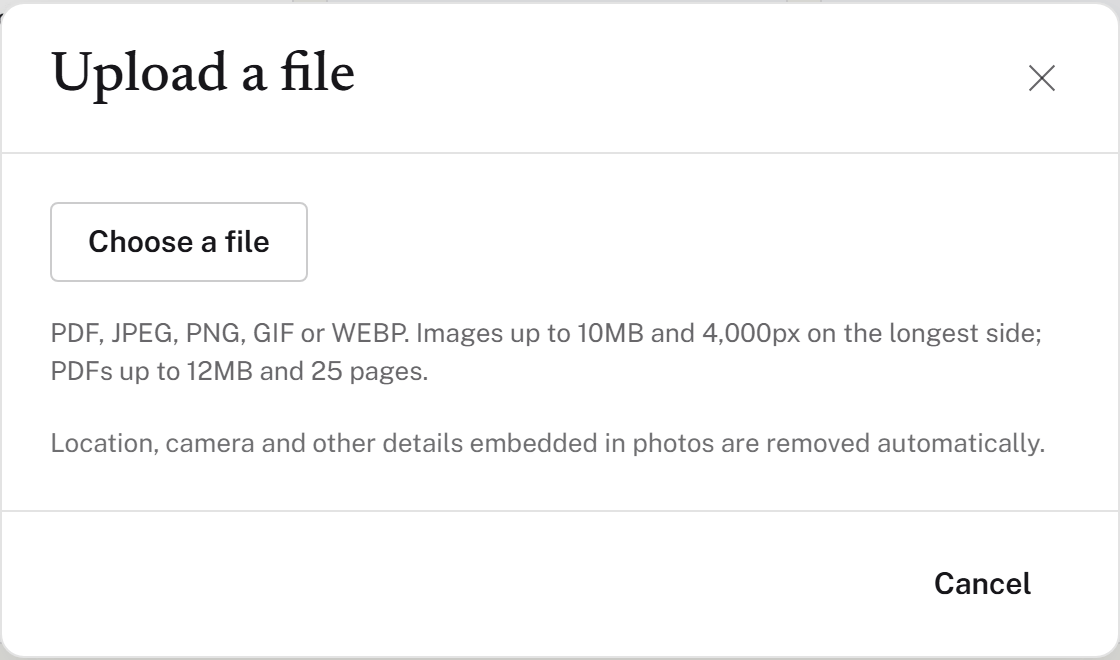
If you already have the same file, Tailored asks whether to Replace the existing file or Keep both.
How files are checked
Every file is checked before it can be used. A file shows Checking file, then Processing content while its preview is made, then Ready. The page updates on its own while it works.
- Additional review required means the check couldn't finish automatically. You don't need to do anything.
- Not accepted means the file can't be used. If you think that's a mistake, contact support.
Location, camera and other details embedded in photos are removed automatically. PDFs are kept exactly as you upload them, so take anything private out of a PDF before you add it.
Folders and finding files
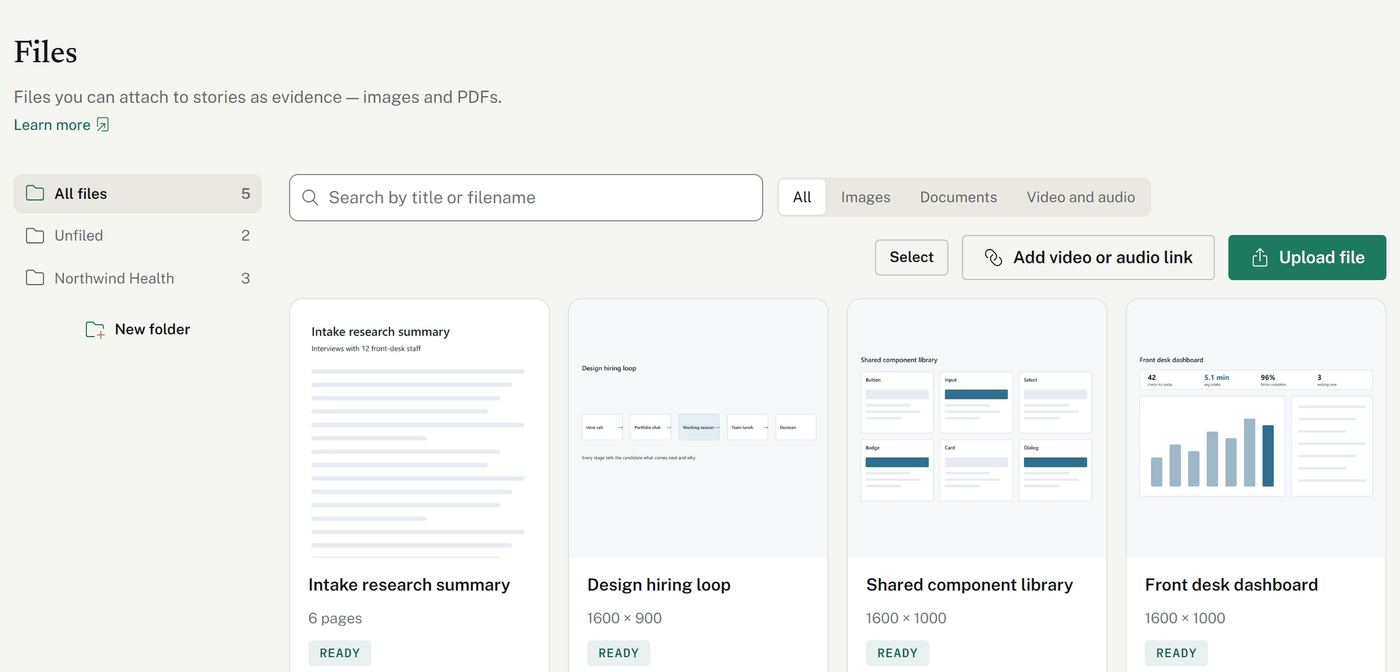
- The left side lists All files, Unfiled and your folders. Choose New folder to add one. Folders are one level deep, and names can be up to 60 characters.
- To file things, choose Select, pick the files, then Move to folder. You can also change a single file's folder in its details.
- Search finds files by title or filename. The filter narrows the list to images, documents, video and audio, or written pieces.
- When you delete a folder that has files in it, you choose whether to delete the files too or move them to Unfiled.
Attaching files to a story
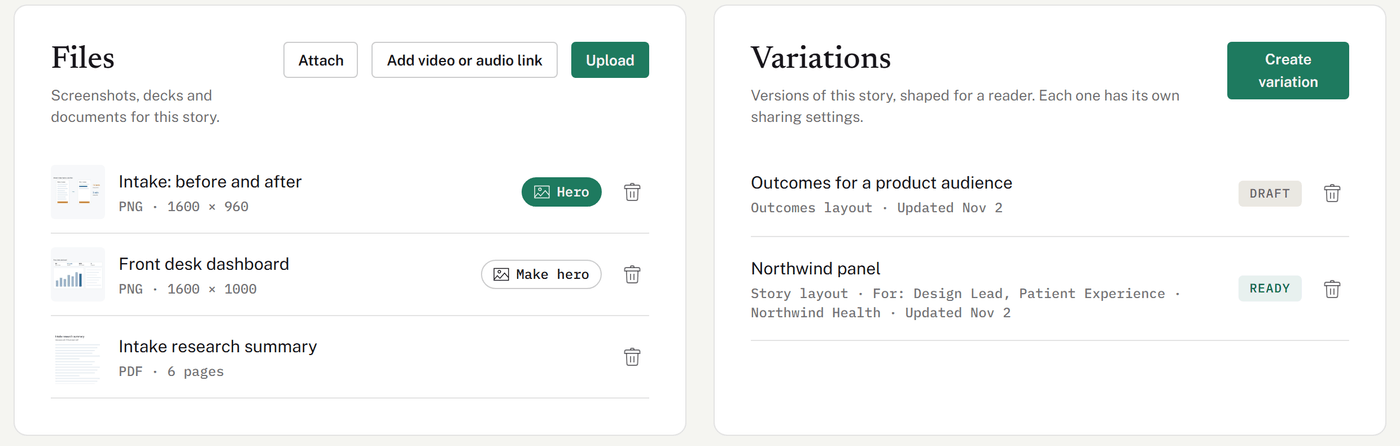
On a story's page, the Files box has three ways to add evidence:
- Attach picks files from your library. Only files that are Ready can be attached.
- Upload adds new files straight from the story, several at once, and saves them to a folder you choose.
- Add video or audio link adds a link from one of the services above.
Files you upload from a story are attached at once, even while they're still being checked. Until they're approved, only you see them. If one isn't accepted, the story shows a note saying which file it was and why.
Choose Make hero to put an image at the front of the story. The trash icon removes a file from the story; the file stays in your library.
Adding files to a Folio's Further reading
PDFs, video or audio links and written pieces can also go on a Folio, below its stories, as Further reading: an op-ed, a paper or a recorded talk that speaks to your work as a whole. The same file can be on any number of Folios. See Further reading: adding papers, articles and recordings to a Folio.
Video and audio links
Choose Add video or audio link and paste the link from YouTube, Vimeo, Loom, Spotify or SoundCloud. Tailored checks the link with that service and keeps its title and thumbnail. Nothing is uploaded to Tailored: the video or recording stays with the service.
- How it plays: readers see a card with the service's thumbnail. When they open it, the service's own player loads in the viewer on the page. Readers stay in your Folio; they aren't sent to the service's site.
- Nothing plays on its own. The player loads only when a reader opens the card, and nothing plays until they press play.
- A plain, privacy-friendly player. Tailored loads each service's player in its most private form (for YouTube, its privacy-enhanced mode) and adds nothing of its own. Settings carried in the link itself, such as a YouTube start time, aren't used, so it starts from the beginning.
- The service still decides what can play. If a video's owner has turned off embedding on that service, or the video is removed or made private there, the player shows the service's own message instead.
- Anyone with the link can watch or listen on that service, even after your Folio expires.
- Opening one counts as an open in your activity. Tailored doesn't track whether anyone watched or listened.
Written pieces
A written piece is text you keep in Files: an op-ed, an article, a talk you wrote up, anything you'd rather show in full than link to. It goes in a Folio's Further reading, and one piece can be on as many Folios as you like.

- Writing one: choose Write a piece, give it a title, pick a Folder, and write or paste it into Your piece. The toolbar has bold, italic, two heading sizes, lists and links. Formatting you paste is cleaned up, and if it carries hidden characters, Tailored offers to remove them. A piece can be up to 200,000 characters.
- From a Folio: Write or paste a piece in a Folio's Further reading saves the piece to Files as well, in Unfiled unless you pick a folder, and adds it to that Folio.
- Ready straight away: there's nothing to upload or check, so it shows Ready as soon as you save. Its title and text are checked when you publish a Folio that uses it, like the rest of the Folio's text.
- Editing: open it in Files to change the title, folder or text. The dialog says how many Folios use it. Every Folio's draft gets the change. A live Folio keeps showing what you published until you choose Publish changes on it, and Tailored points out each live Folio that's now behind, so you know which ones to publish again.
- What doesn't apply: replacing, the download setting, cropping, and the upload and storage limits are for uploaded files only.
- Deleting: Tailored lists every Folio that uses the piece, published or not. Deleting takes it off all of them right away, live ones included, without you publishing again. Readers who try to open it see that it's no longer available. A deleted piece can't be restored.
What readers see
Readers see only the files attached to a story in the Folio, or added to its Further reading, and only once they're Ready. Anything else in your library is never shown.
- Images, PDFs, and video or audio open in a viewer on the page. Readers move from one to the next with the arrows, the arrow keys or a swipe. PDFs show page by page, with zoom.
- A written piece opens as its own page inside the Folio, in your Folio's look.
- Readers can download the original when Allow people you share with to download the original is on in the file's details. It's on unless you turn it off. When it's off, the viewer shows no Download button. The file still has to reach the reader's browser to be shown, so this discourages saving rather than preventing it.
Editing, replacing and deleting
- Editing: open a file to change its title, alt text, caption, credits, folder, download setting or crop. For a written piece, it's the title, folder and text.
- Replacing: upload the new version and choose Replace the existing file. Stories and Folios that use the old file switch to the new one once it's ready, including Folios that are already live.
- Deleting: a deleted file is gone for good, with no trash to restore it from. It comes off every story and Folio that uses it, and readers of your Folios stop seeing it. Before you delete, Tailored lists the stories and Folios that use the file.
Was this helpful?
Still need help? Ask the team