Your account: name, photo, sign-in and preferences
Change your name and photo, your sign-in email, how you sign in, and your dates and time.
Written By Tailored Folio
Last updated About 4 hours ago
Your account settings live under your avatar menu, in Settings. This page covers three of them: Name & photo, Sign-in & security and Preferences. Your headline and LinkedIn are in Your career, and exporting your data or deleting your account is in Data & privacy.
Name and photo
Your name and photo appear on every Folio you share. Changes reach Folios you've already shared too; you don't need to publish again.
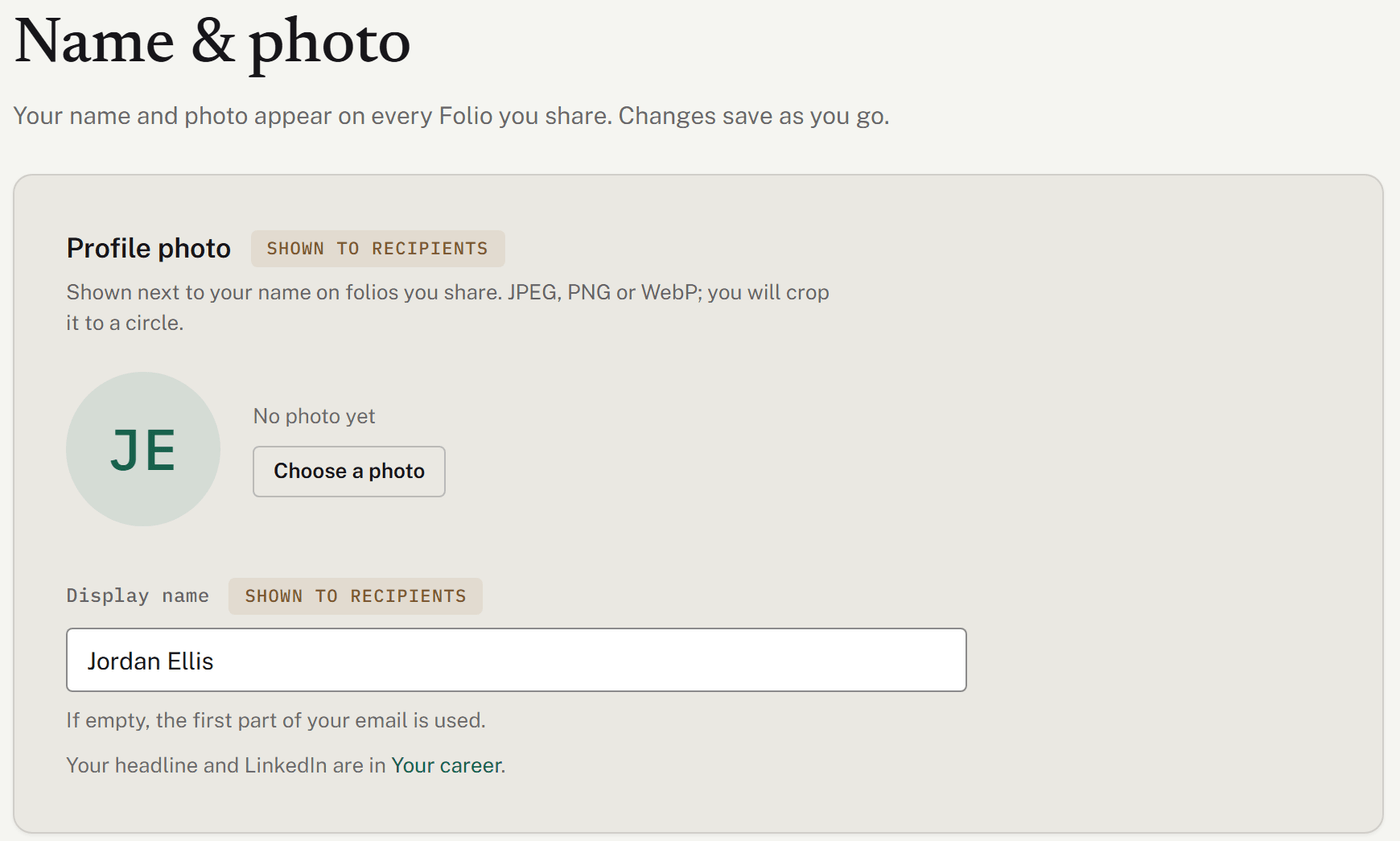
- Display name saves as you type, up to 80 characters. If you leave it empty, the first part of your email address is used.
- Profile photo: choose a JPEG, PNG or WebP image, then drag and zoom to fit it in the circle and choose Save photo. The cropped photo can be up to 2 MB, and every photo is checked before it's used. Use Change photo or Remove photo later.
Changing your sign-in email
Your sign-in email is also where Tailored Folio sends account email. To change it, open Sign-in & security and choose Change email.
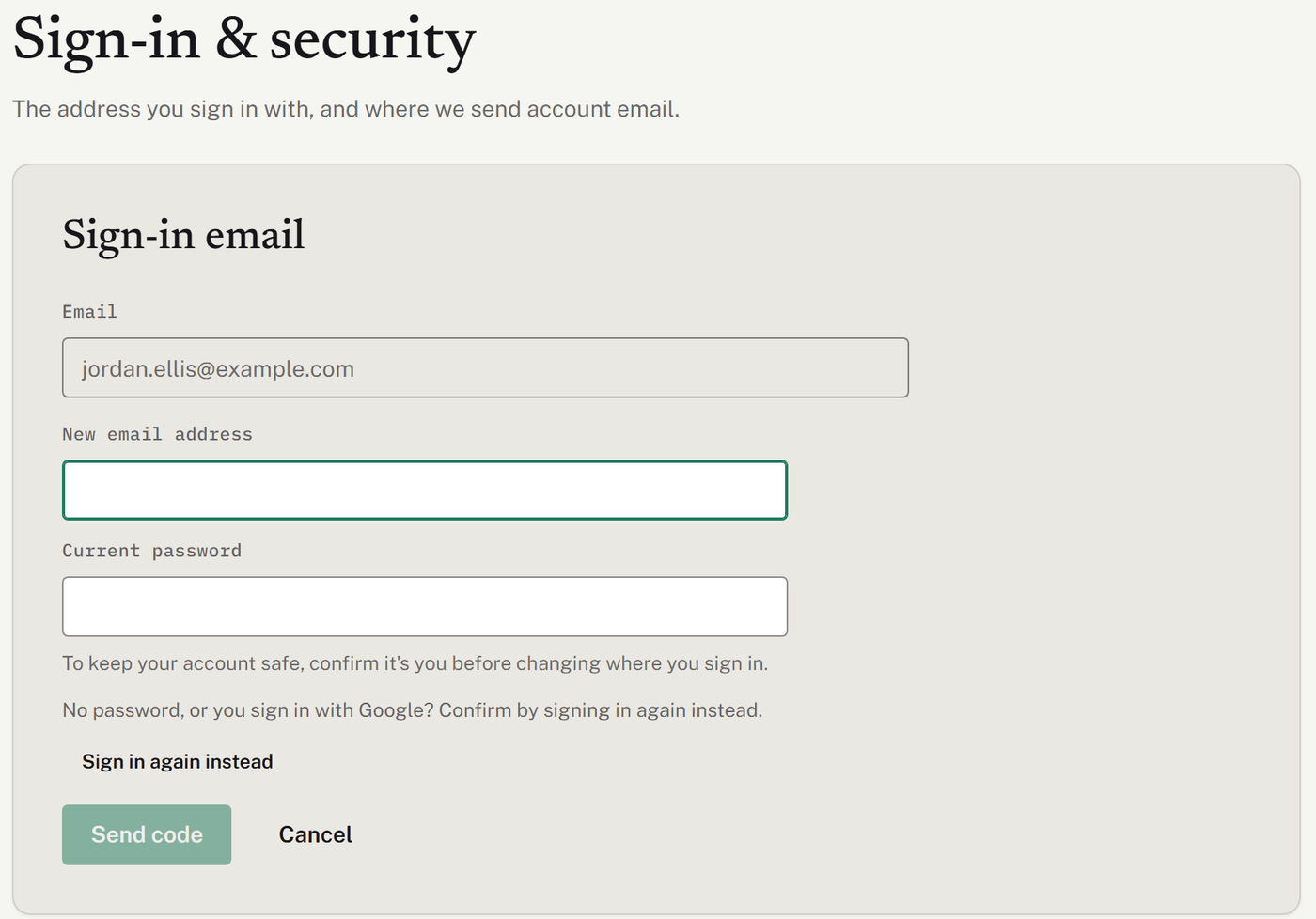
- Enter the New email address.
- Confirm it's you. Unless you signed in within the last few minutes, enter your Current password. If you sign in with Google or don't have a password, choose Sign in again instead. With two-step verification on, you'll need a code too.
- Choose Send code. A code goes to the new address.
- Enter the Code from the email and choose Confirm new email.
Until you confirm, keep signing in with your current address. Once it's changed, you stay signed in, and a note goes to your old address. If you pay for Pro, you can choose to update your billing email at the same time.
After five wrong passwords, the page asks you to wait 15 minutes, or to sign in again instead.
Passwords and signing in
- You can sign in with your email and password, or with Google.
- To reset a forgotten password, choose Sign out, then use the reset link on the sign-in screen. See Changing or resetting your password.
- For your security, you're signed out after a period without activity. Sign in again to pick up where you left off.
- To sign out yourself, choose Sign out at the bottom of your avatar menu.
- To see where you're signed in, or sign out another device, see Signed-in devices.
- To ask for a code each time you sign in, see Two-step verification. If you can't get a code, see Lost your phone?
If you think someone else has signed in to your account, change your password, then check Signed-in devices. If you can't get in, contact us and we'll sign you out everywhere.
Preferences
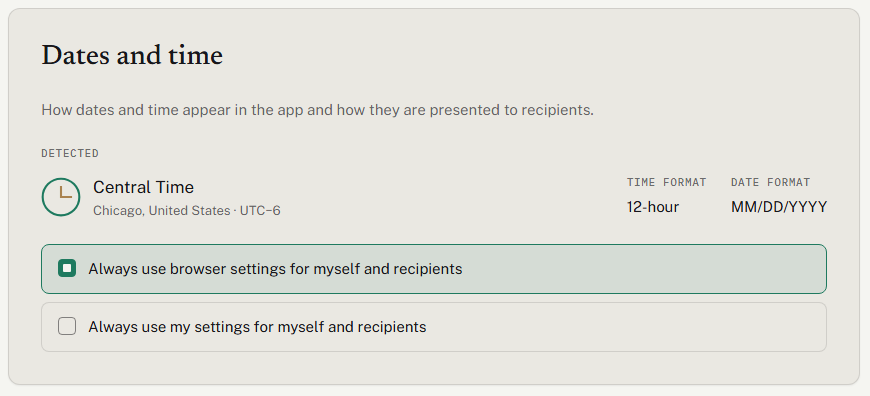
- Dates and time sets the time zone and the date and time formats used in the app, in our emails and on the Folios you share. It follows your browser unless you choose Always use my settings for myself and recipients and pick your own. Type a city, country or zone name to find your time zone. See Dates and time: time zones and formats.
- What are you mainly using Tailored Folio for? starts with your answer from sign-up. Change it any time; it helps us understand what people use Tailored Folio for. The only thing it changes is which three suggestions come first under Explore in the Getting started list on Home.
Was this helpful?
Still need help? Ask the team